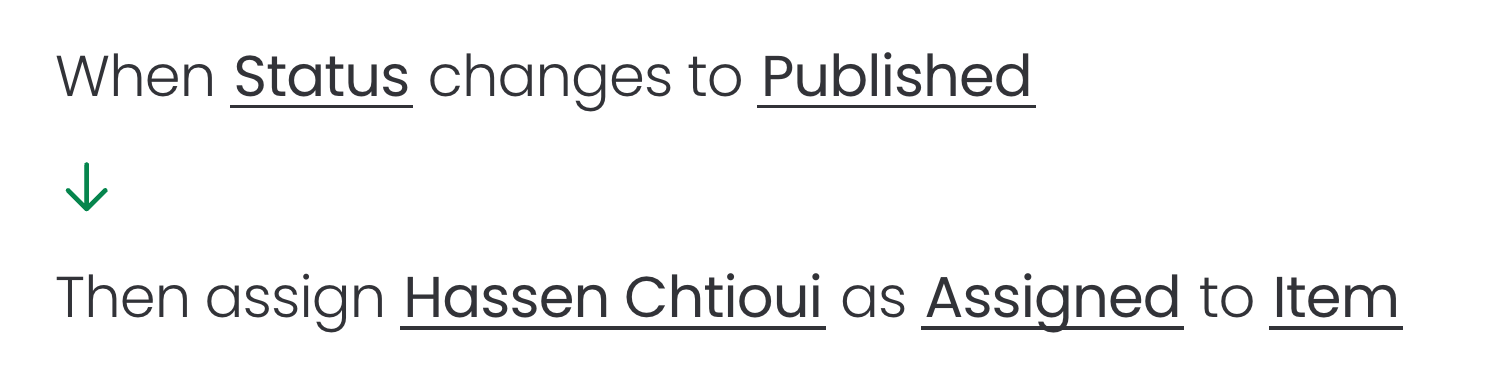
How can I automatically assign users when a course status changes from Draft to Published?
This automation can be configured directly from the board's Automation section. Follow the steps below to complete the setup and ensure the automation runs as expected:
Open the board that contains your courses
Open the Automations dashboard and click on Create automation
Choose the trigger "When status changes to something"
Select the Status column and choose Published
Add the action "Add assignee"
Choose the specific users or teams that you want to assign and select the Assigned column that you want to populate
Create the automation
Example:
You can assign the course's creator automatically by choosing the Assign item creator action instead.