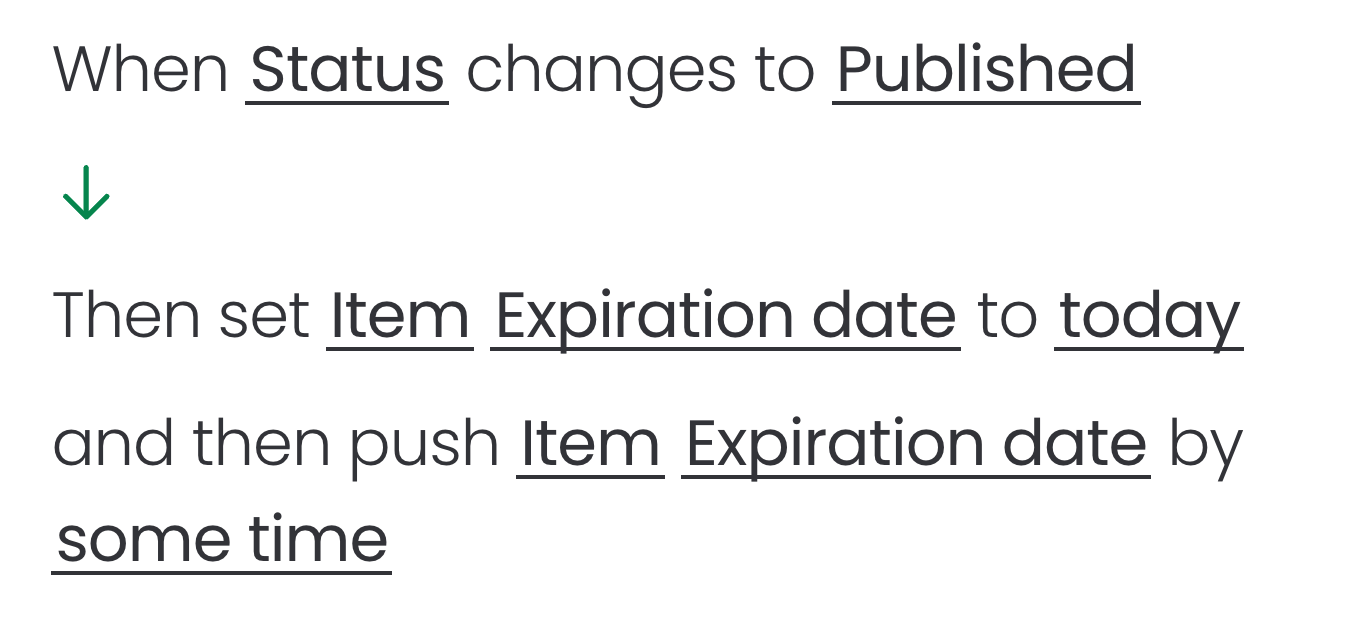
This automation can be configured directly from the board's Automation section. Follow the steps below to complete the setup and ensure the automation runs as expected:
Open the board that contains your courses
- Add a new date column for the expiration date
Open the Automations dashboard and click on Create automation
Choose the trigger "When status changes to something"
Select the Status column and choose Published
Add the action "Set date"
- Click on date column to select the Expiration date column
- Click on date to select today
Add the action "Push date"
- Click on date to select the Expiration date column
- Click on some time to set the expiration date
Create the automation
Example: