Toolbar
The Live Spreadsheet app's toolbar provides various options and functions for users.
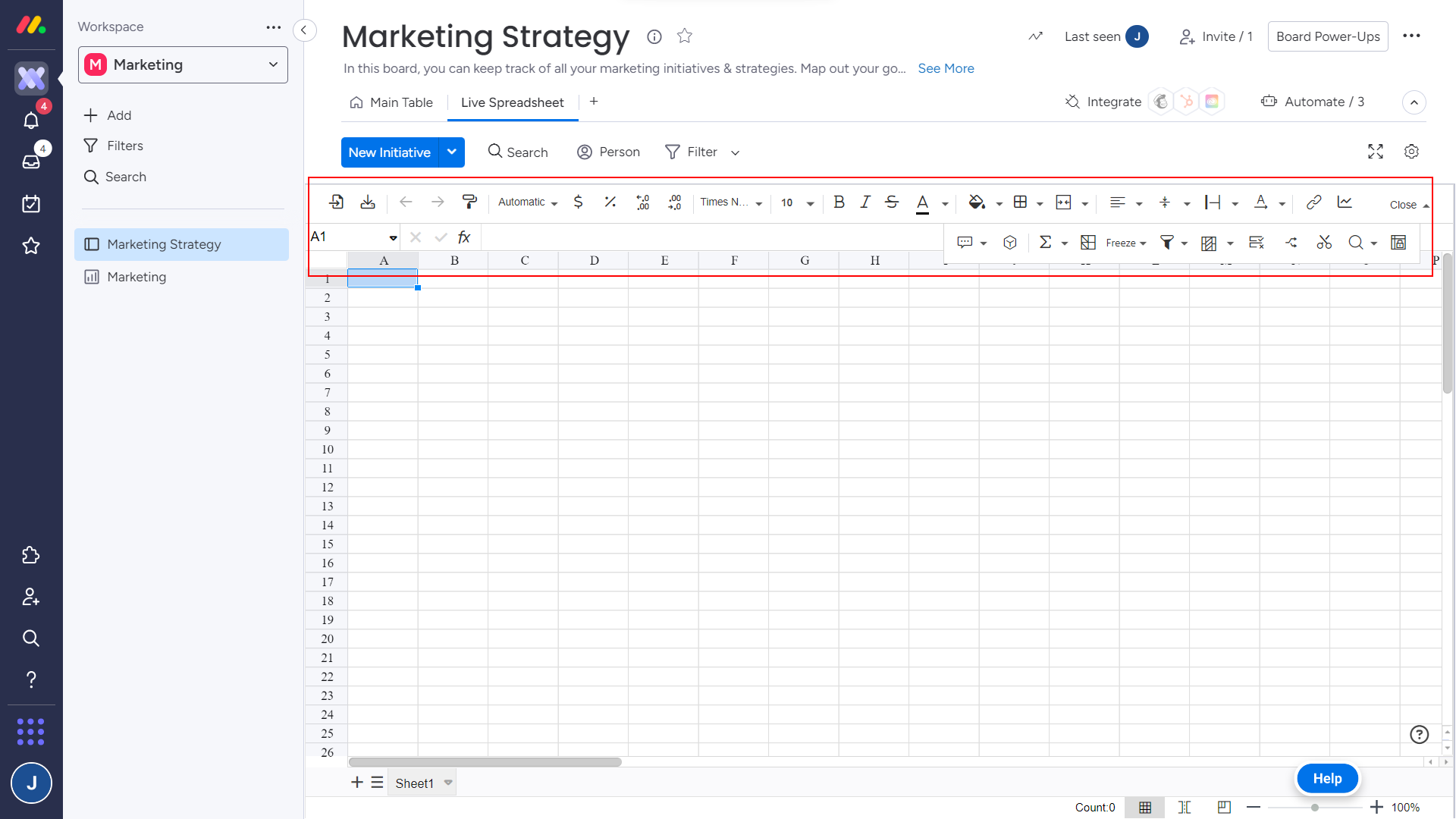
These options can be categorized into:
Collaboration
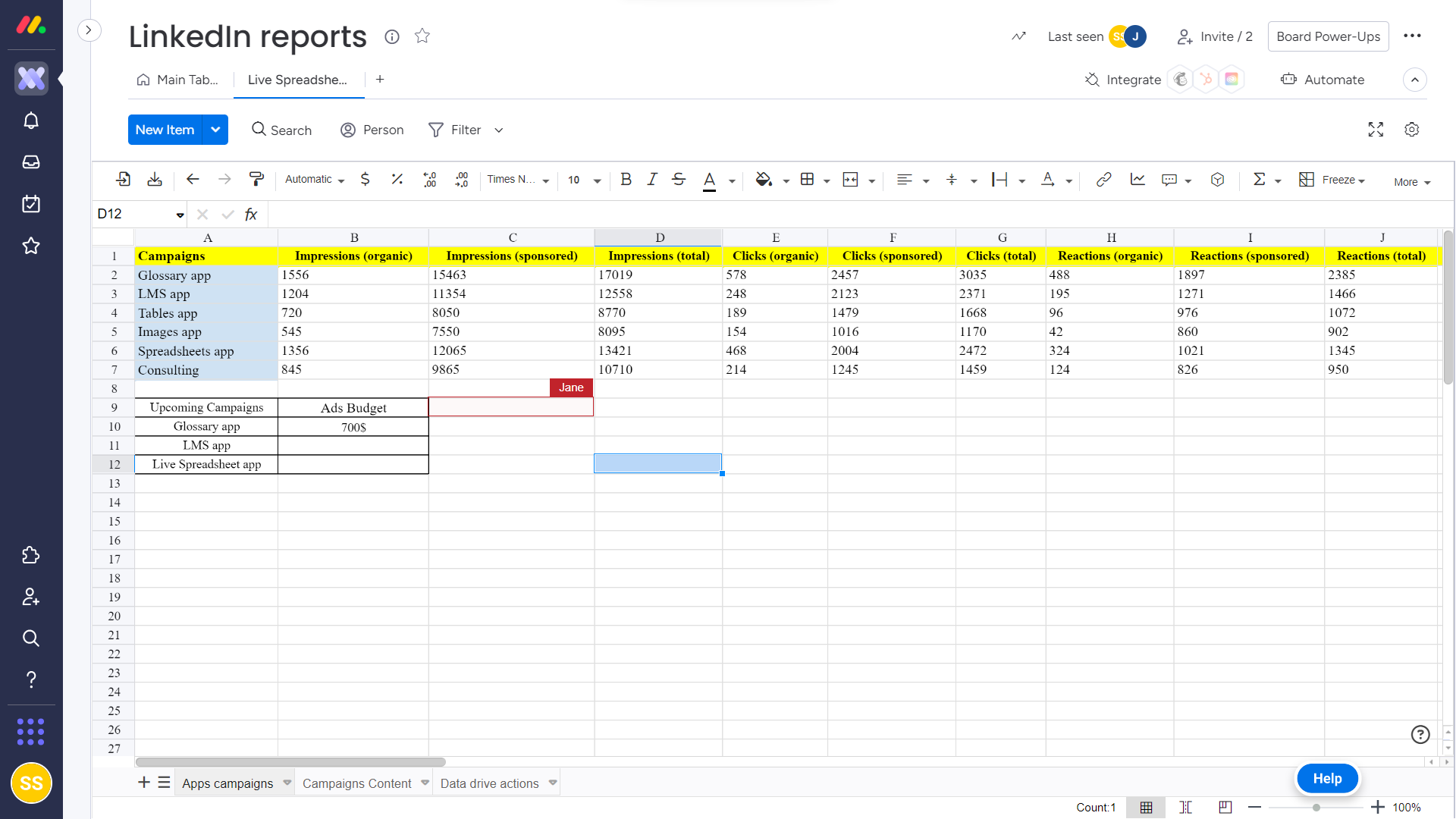
Add comments and edit in real-time:
Import/ export
Easily add an XLSX file to Live Spreadsheet or export a spreadsheet made in monday.com to an Excel file.
Import boards
Select groups from the connected monday.com boards and import them as sheets.
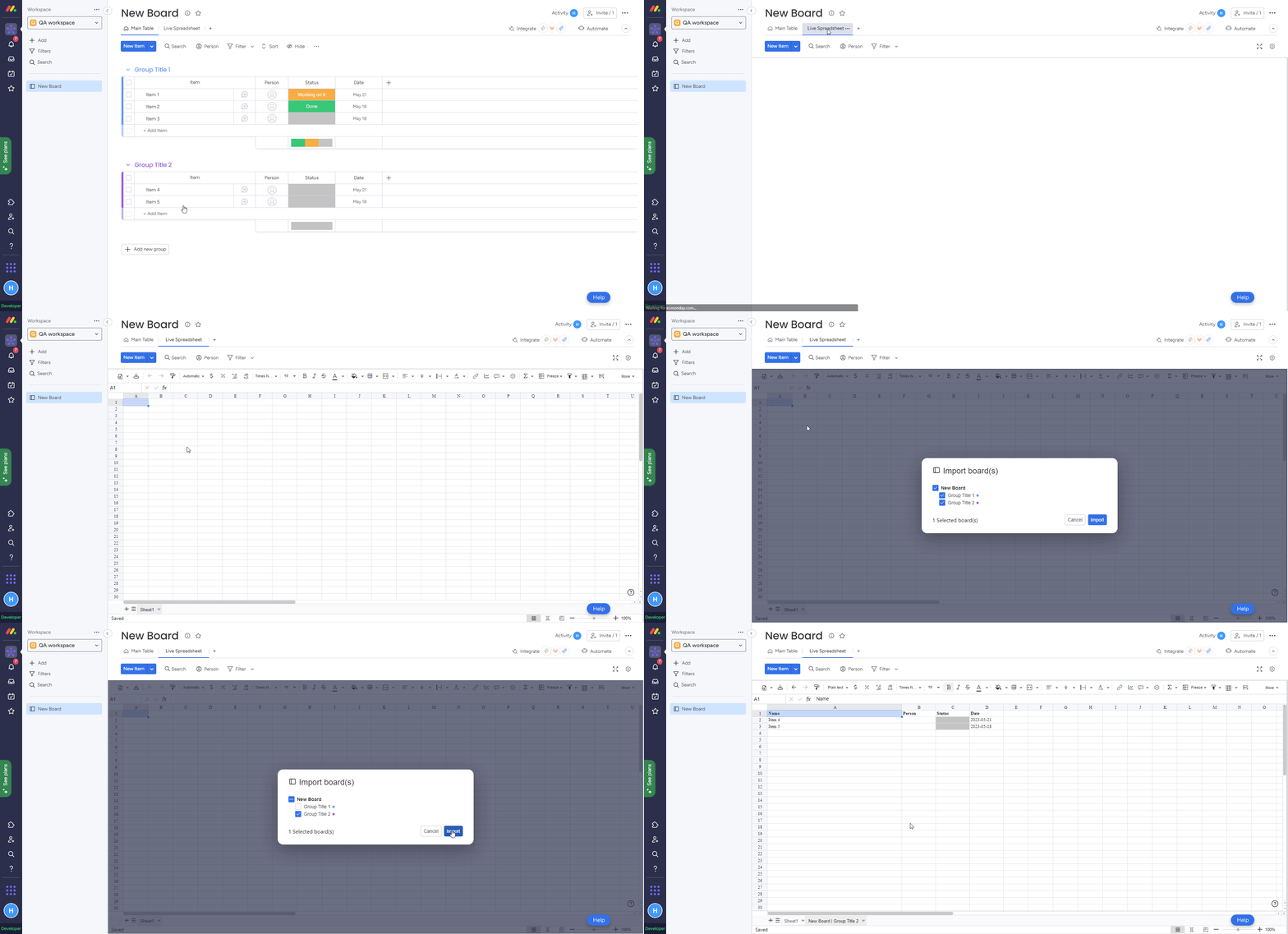

Sync imported boards
Users can sync updates made to a board group after it was imported to Live Spreadsheets. They can only sync data that they are allowed to view in the monday.com board.
Any user allowed to sync the sheet can click on the Sync Sheet button to get the latest updates into the current spreadsheet. An orange dot on the sync button will appear when the imported group is updated on the board.
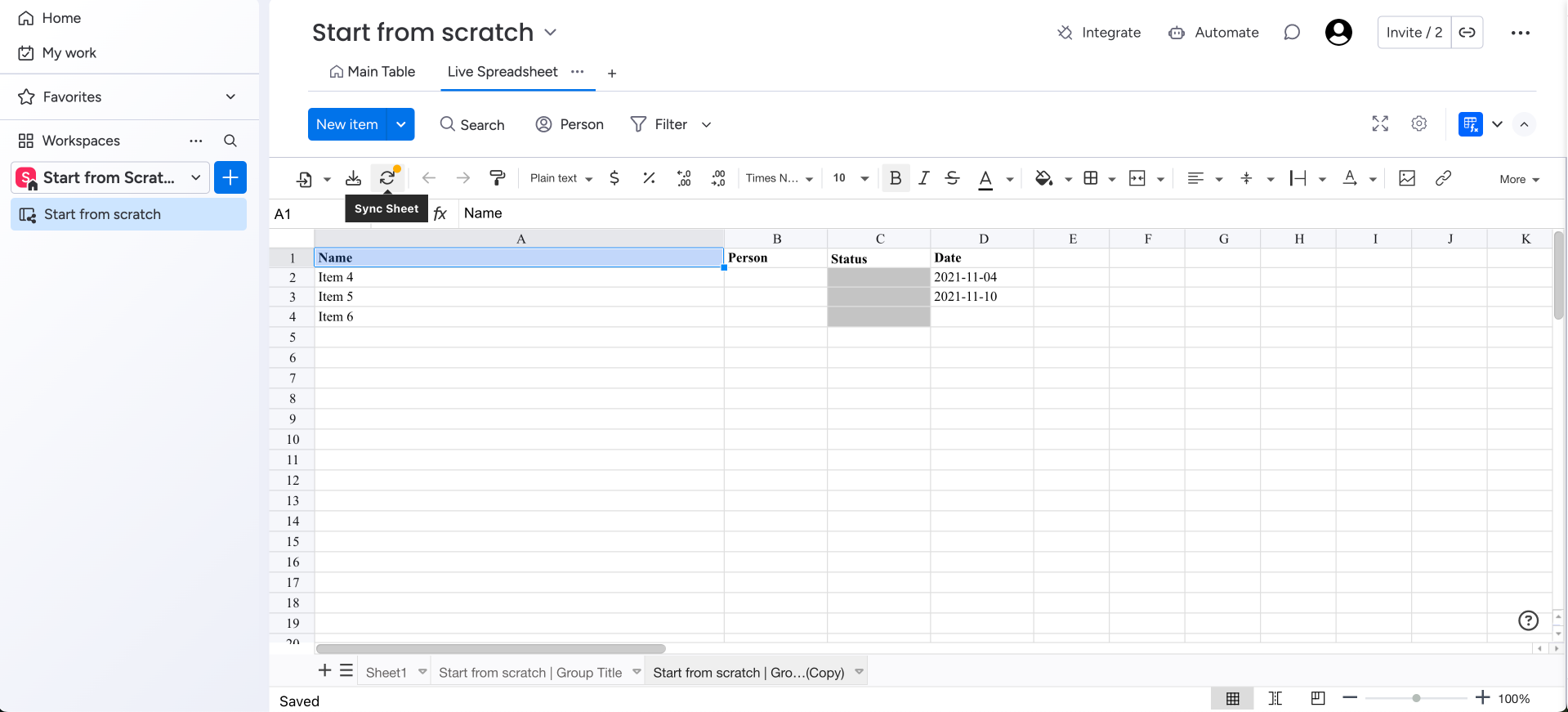
Synchronization settings
Grant sync permissions only to specific users or teams. Keep empty to remove restrictions.
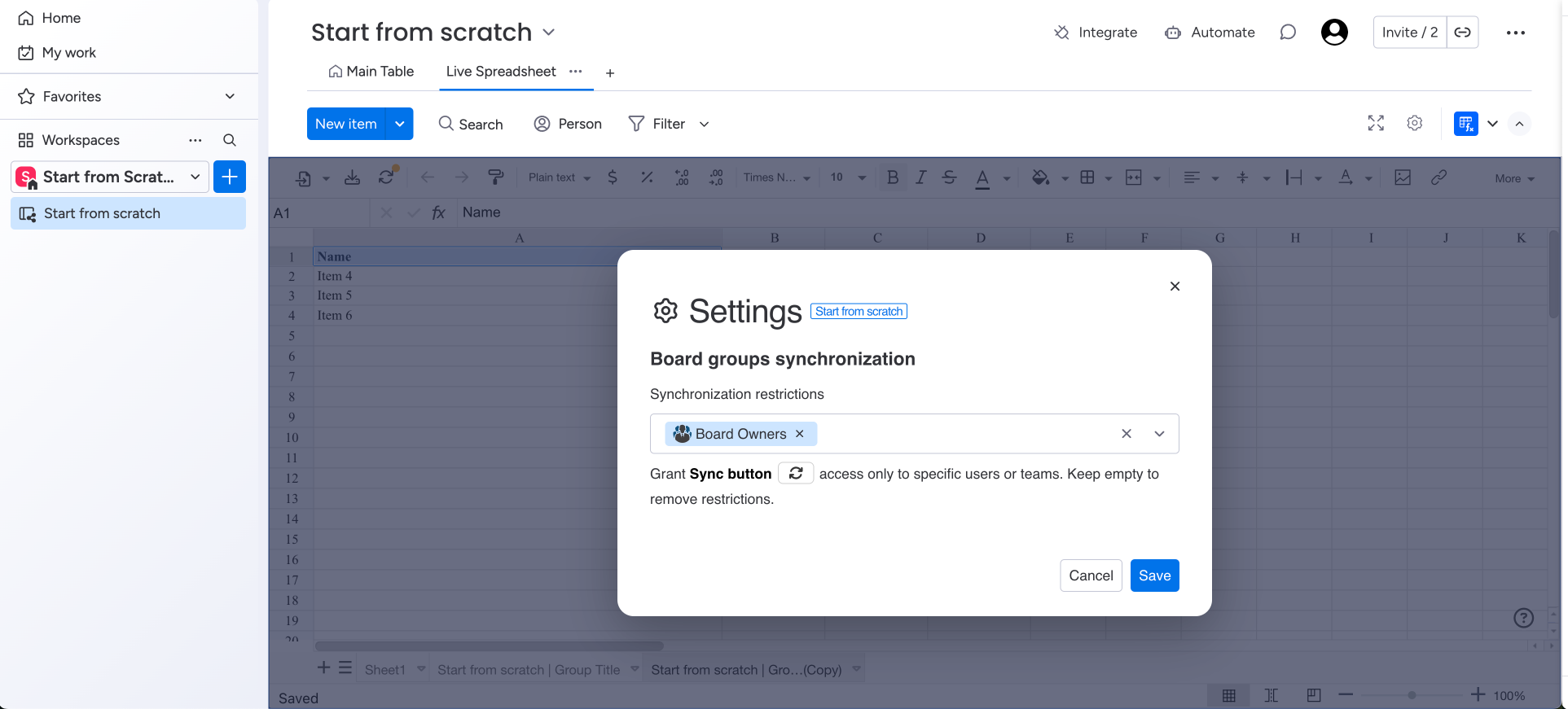
Board owners of the imported board can sync sheets by default until they are removed from the restricted list.
Only board owners can edit the synchronization settings.
Actions
Undo/redo, Paint format, find and replace, search, screenshot, and print.
Formatting: These icons allow you to format cells, text, and other elements in your spreadsheet:
Cells formatting: Format as currency, format as percent, decrease and increase decimal places, more formats, fill color, border, merge cellsText Formatting: Font, size, bold, italic, strikethrough, underline, text color, horizontal and vertical-align, text wrap, and text rotate
Insert
These icons allow you to:
Insert images
Add Links
Create Charts: When a chart is added to a spreadsheet in a collaborative session, the chart will be updated in real-time for all collaborators with the file open. This means that any changes made to the chart, such as updating the data range or changing the chart type, will be immediately reflected for everyone in the session.
Formulas and functions
These icons allow you to perform calculations, create formulas, and use functions in your spreadsheet. Check this link for the full list of supported formulas.
Pivot table
It allows you to summarize and rearrange large amounts of data in a flexible and dynamic way
Rows and Columns
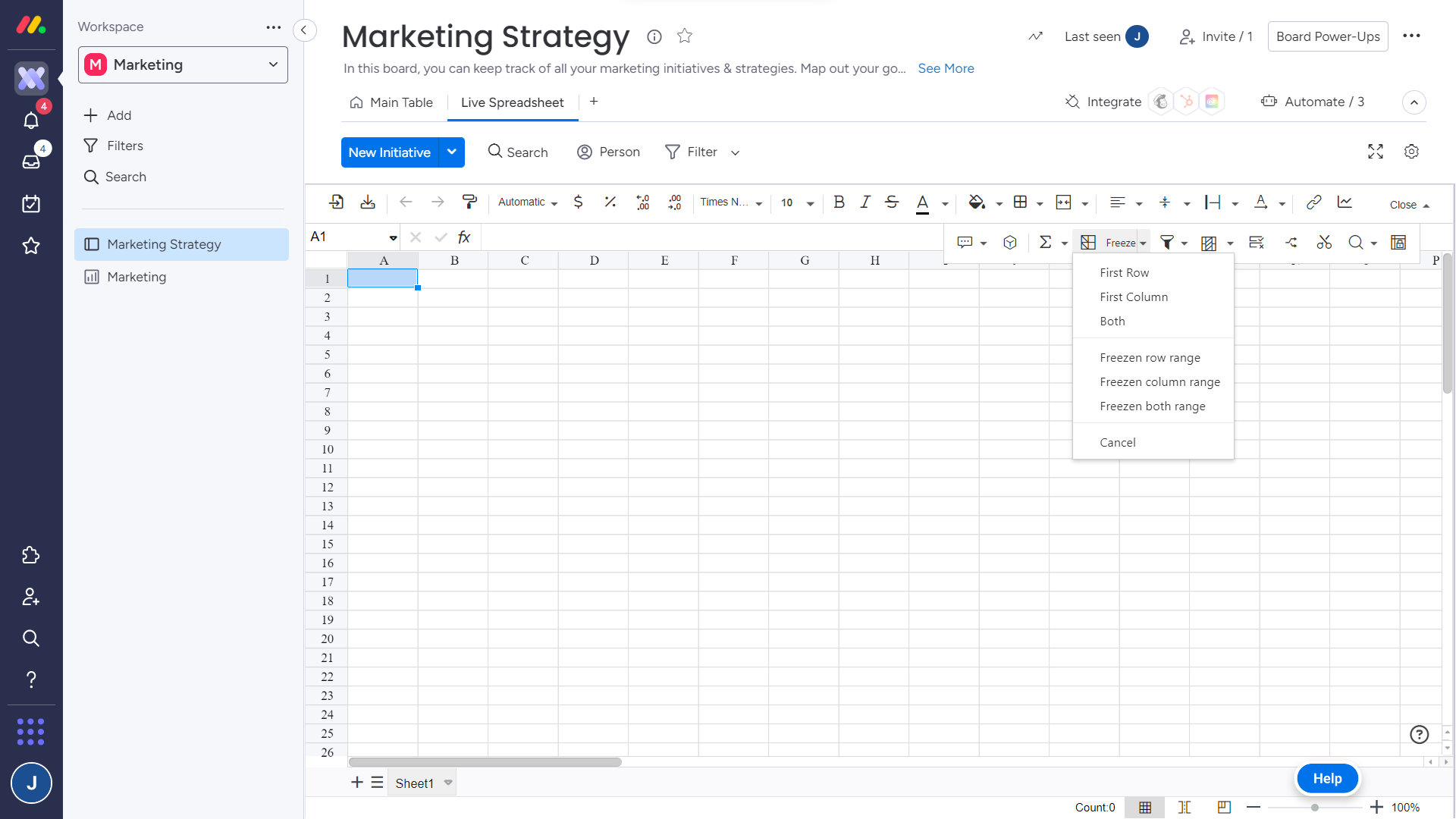
Filter and sort
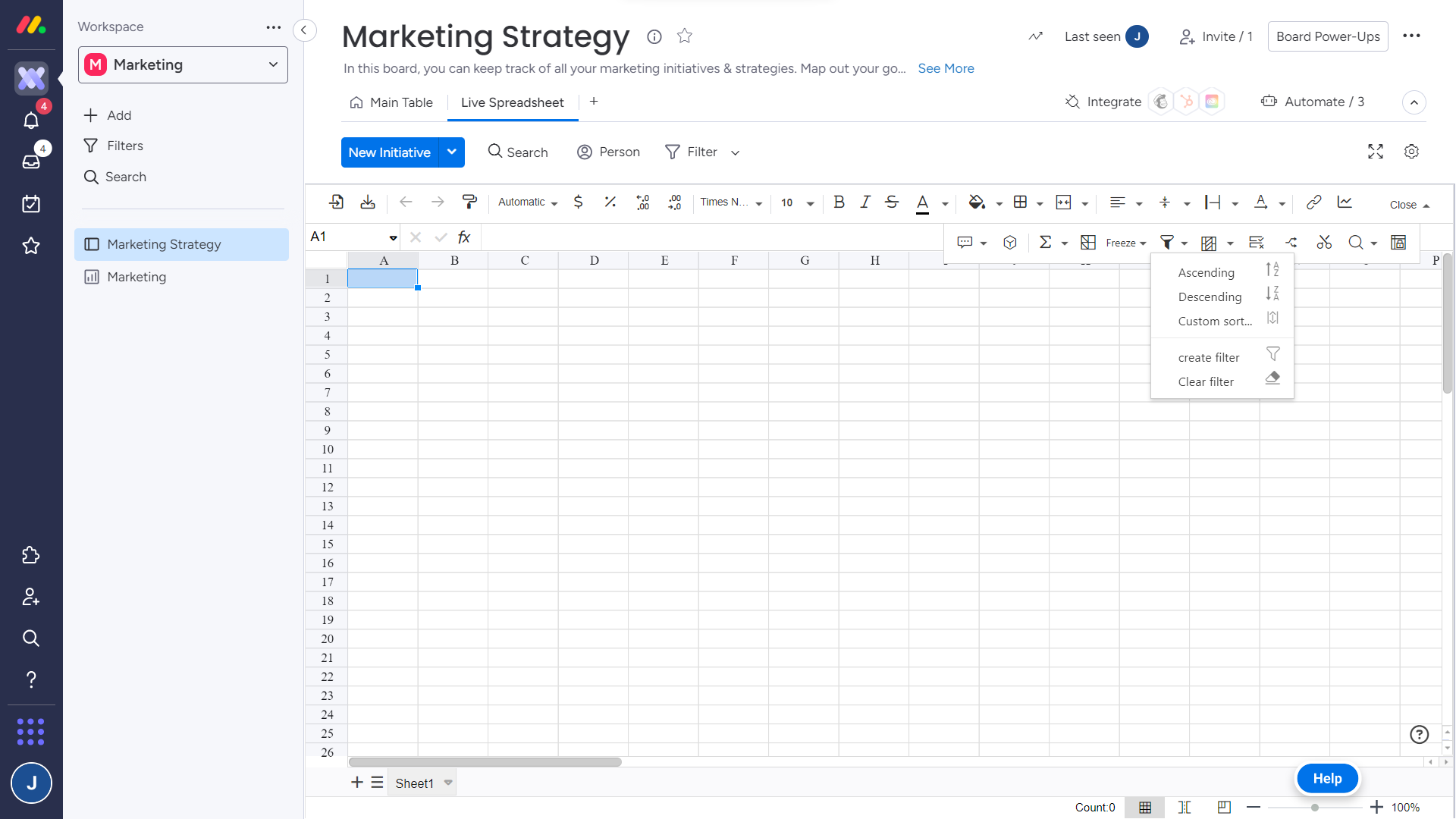
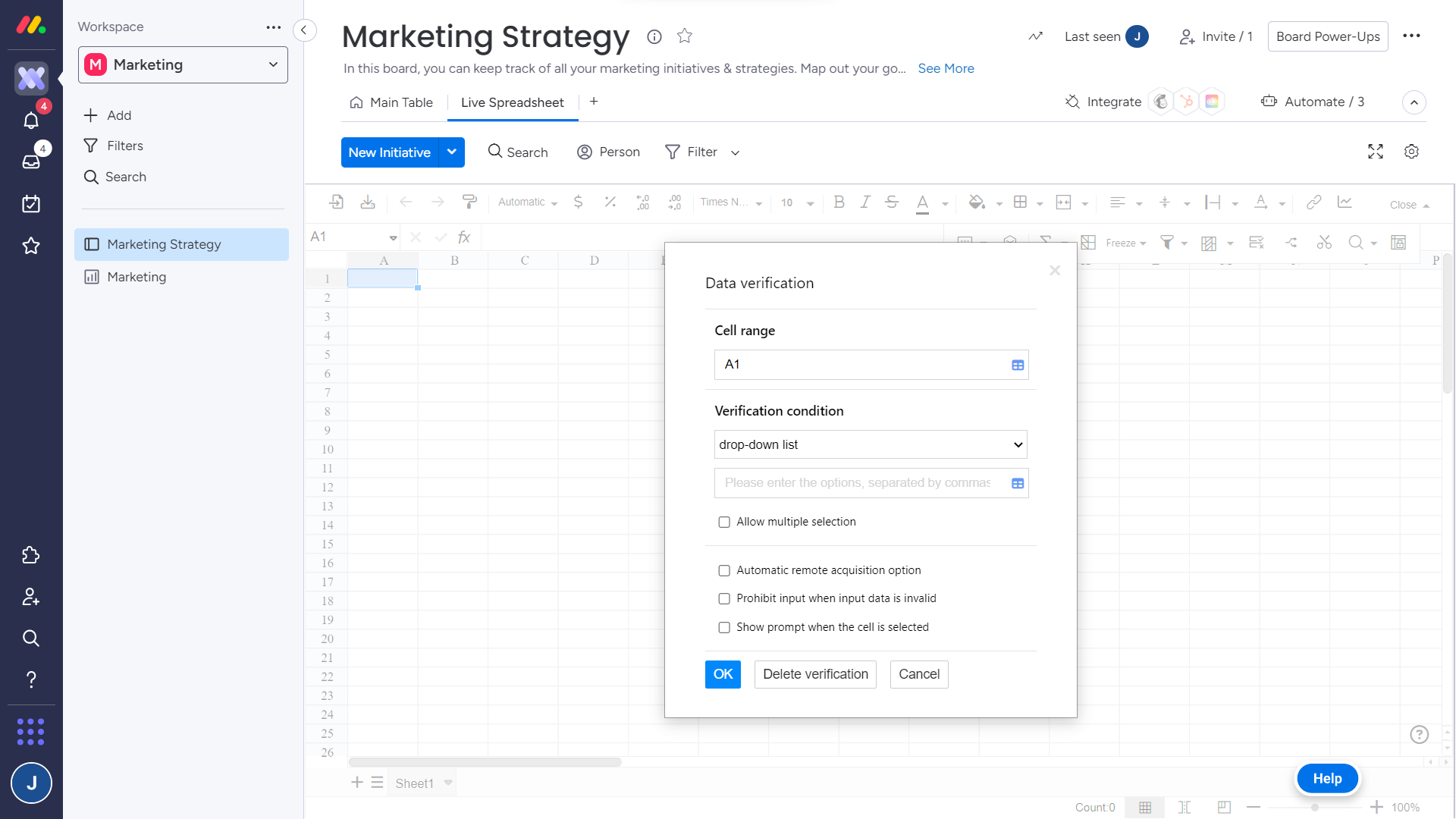
Data verification
It allows for checking the accuracy and consistency of the data entered in a spreadsheet.
Verification options include:
Drop-down menu
Checkbox
Number
Number-integer
Number-decimal
Text-content
Text-length
Date
Effectiveness
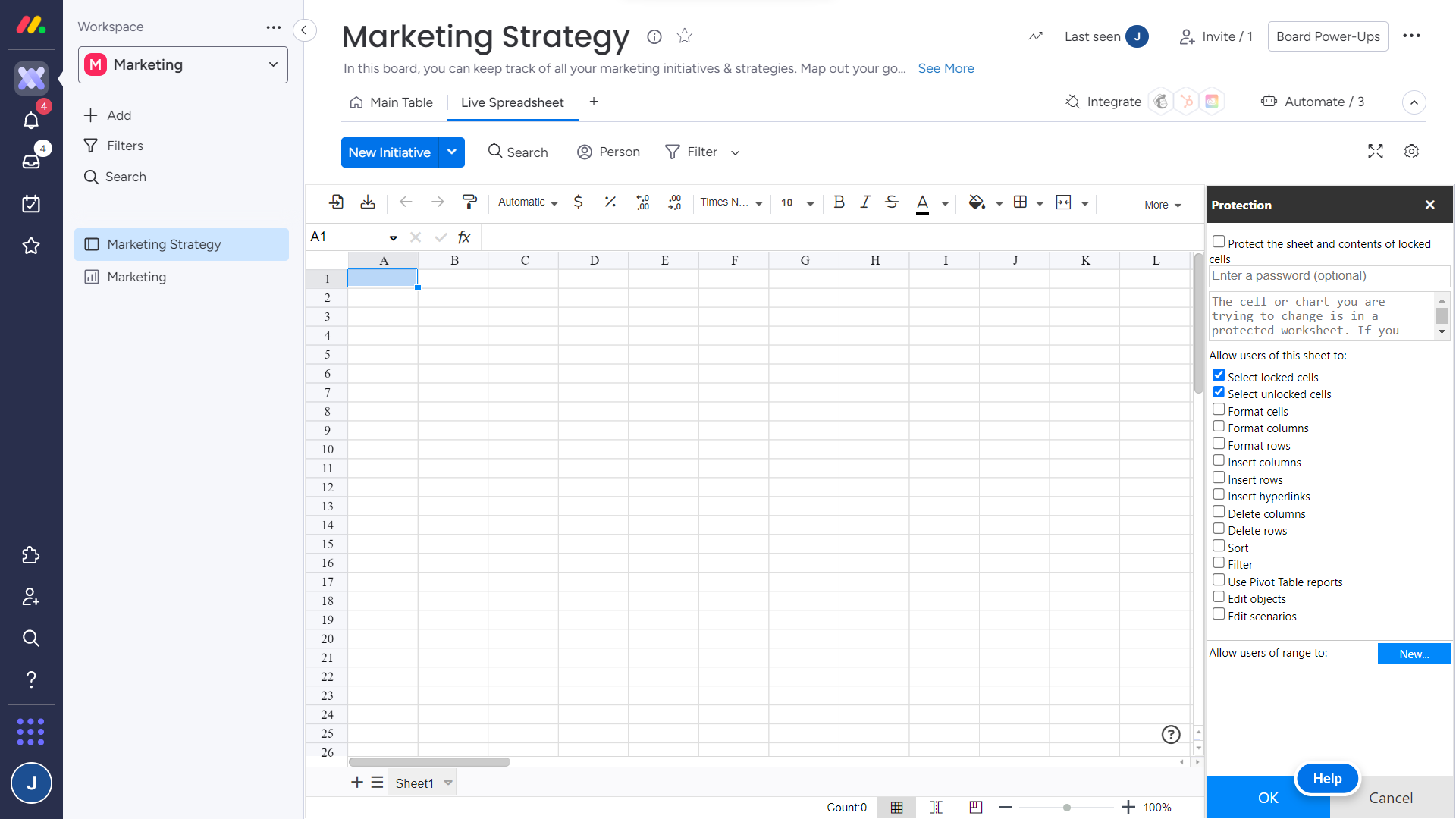
Sheet Protection
It restricts editing to certain cells or ranges. This can be useful if you want to prevent unauthorized changes to important data or if you need to share a sheet with others but only allow them to view or modify specific parts of it.
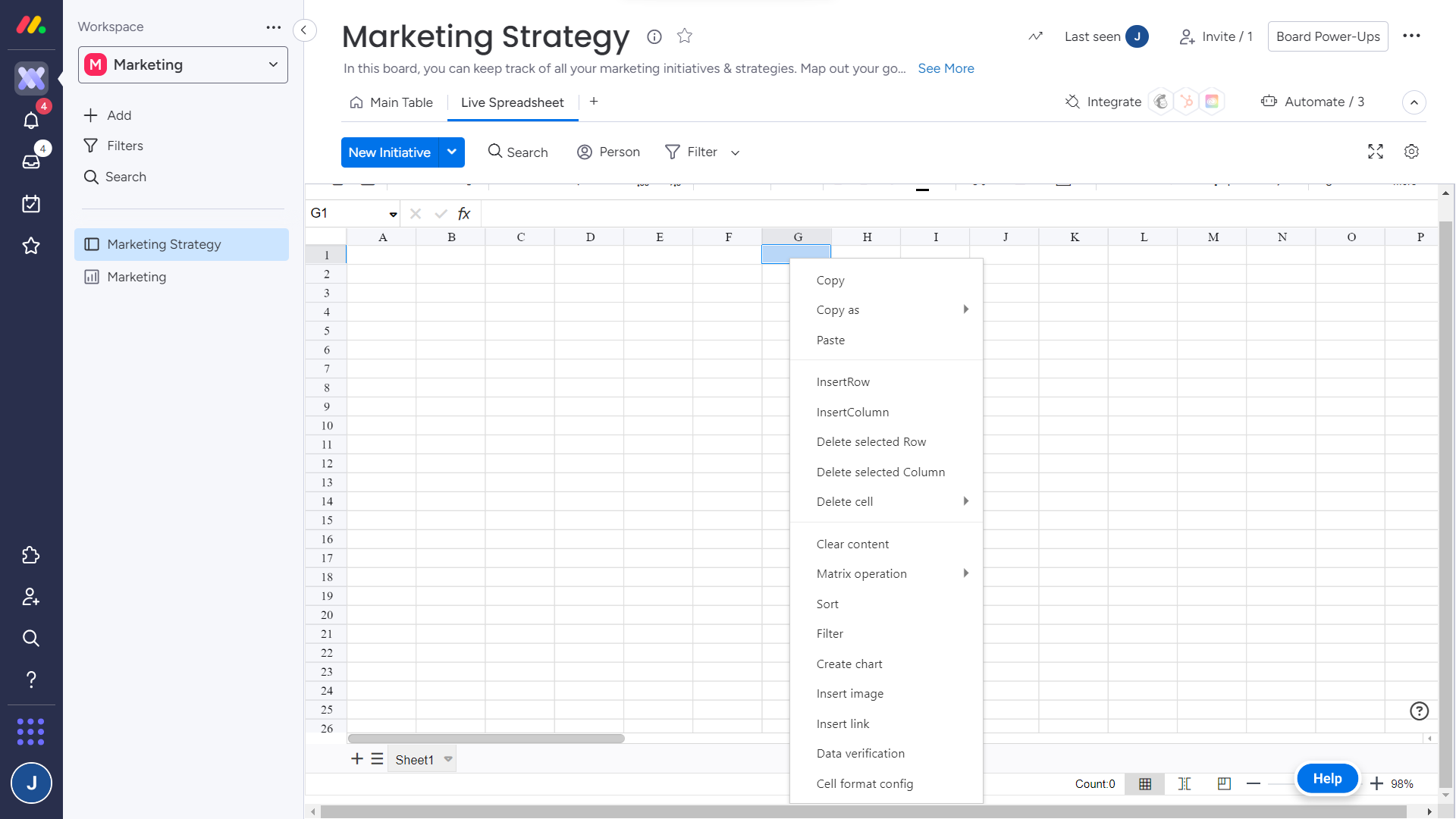
Right-click on any cell and the context menu will appear with a list of options related to the selected cell. This can include options available in the toolbar and other options like copy and paste.