Smart Courses lets you generate a personal API token so external tools can authenticate requests to the Smart Courses Insights API. This guide explains how to open the API Token settings, generate a token, set its expiry, and regenerate or revoke it when needed.
A token authenticates requests as you and respects your existing Confluence and Smart Courses permissions. Treat it like a password: store it securely and never share it.
Navigate to Global Insights settings
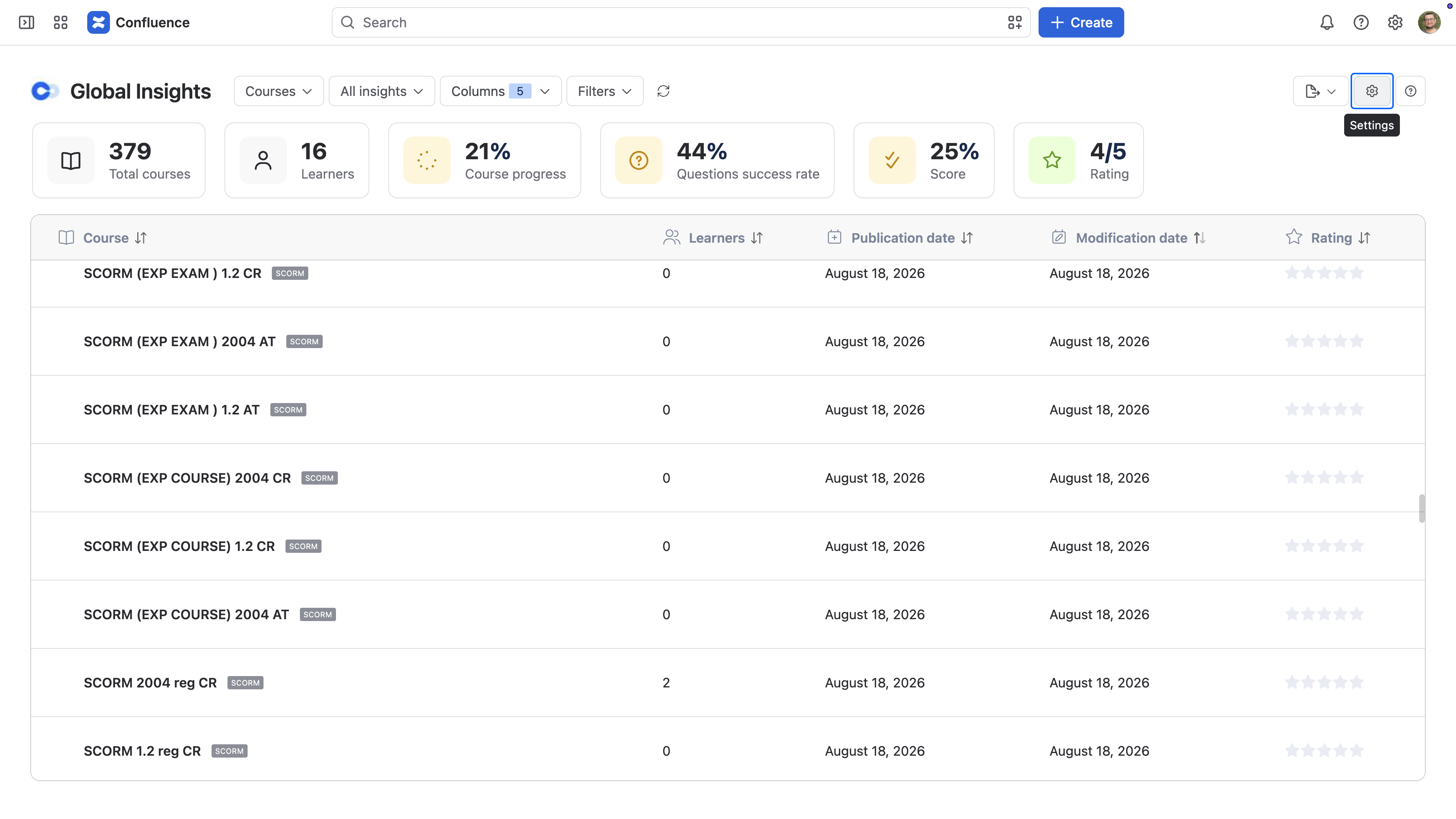
From the Global Insights view, select the Settings (gear) icon in the top-right toolbar.
Generate a token
Before generating the token, set a Due date when the token expires. Then, Click on Generate a new Token.
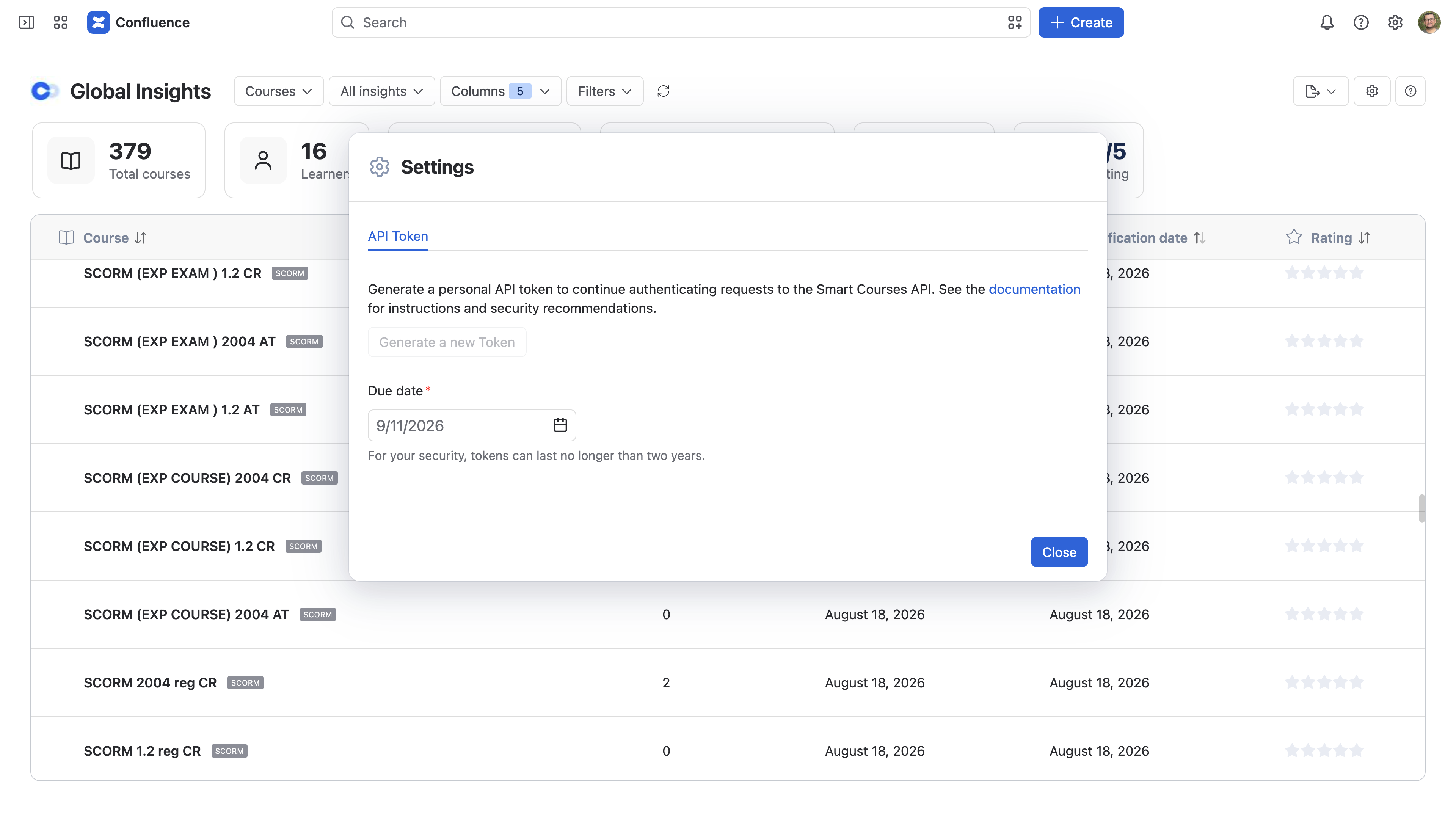
For security, a token can last no longer than two years from the day it is created.
Manage a generated token
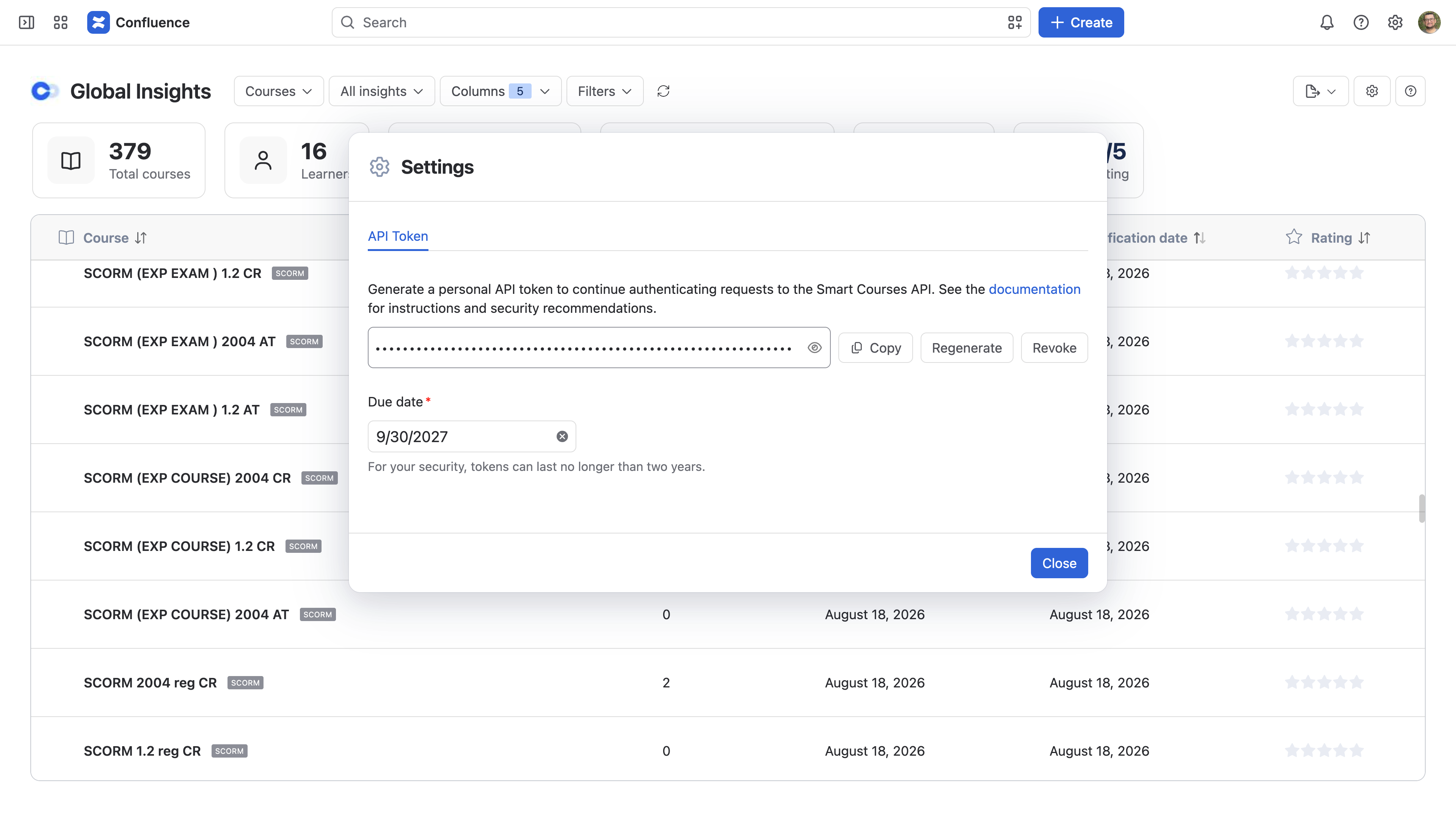
When a token has already been generated, the token is found in a masked field, with options to Copy, Regenerate, or Revoke it. Use the eye icon to reveal the value. The Due date field indicates when the token is expected to expire.
Copy
Click on Copy to use the token or store it somewhere secure. You will add it to the Authorization header of your API requests.
Regenerate or revoke
Click on Regenerate to replace the current token with a new one, or Revoke to disable it.
Regenerating or revoking a token immediately stops the old token from working. Any external tool still using it will fail to authenticate until you update it with the new token.
4. Expired tokens
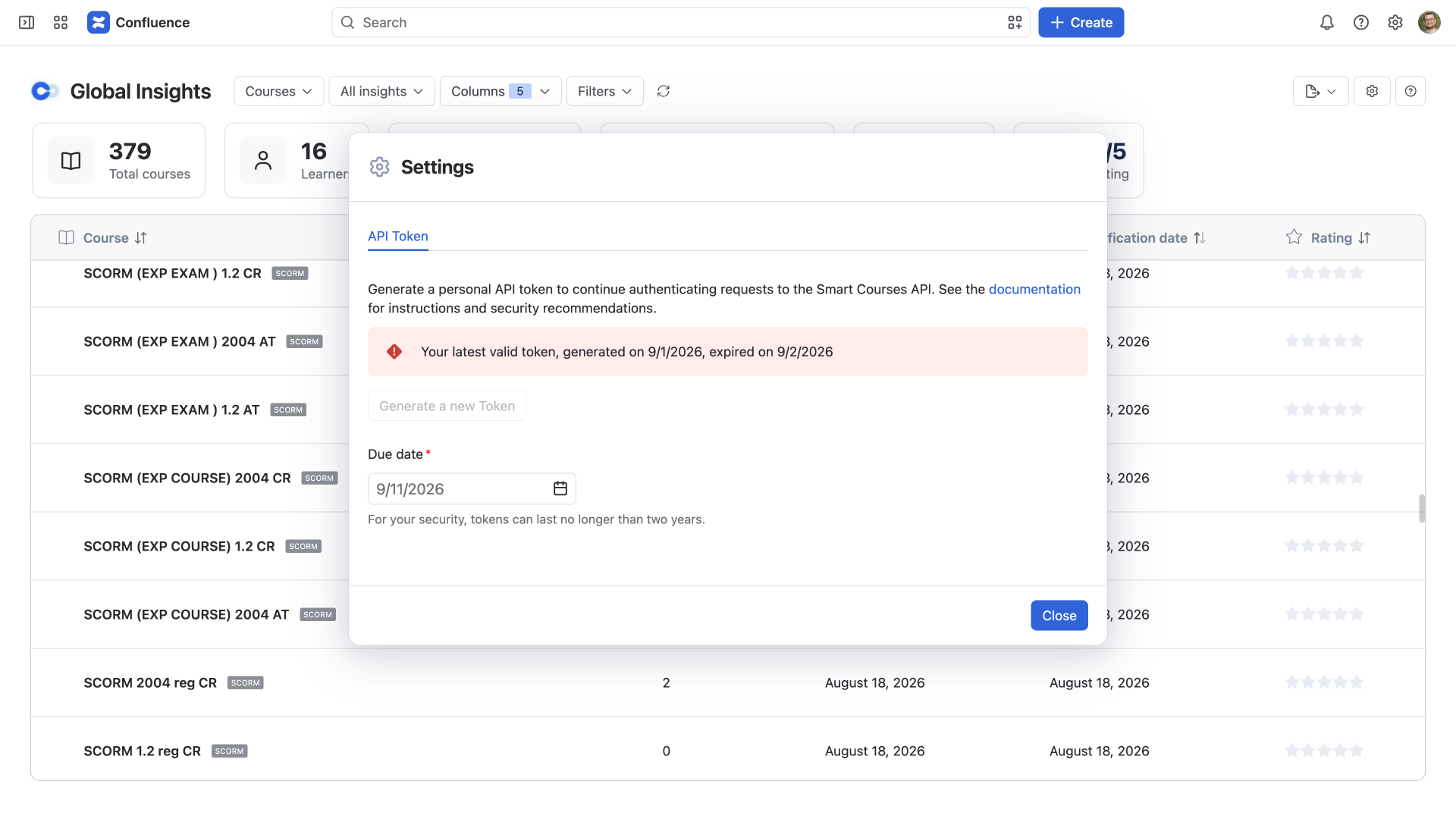
When a token has passed its due date, the dialog shows a notice with the generation date and expiration date. To generate a new one, set a new due date and generate a replacement token to continue using the API.