Lexi: AI Glossary Assistant
Once Smart Terms Glossary is installed, you can let Lexi do the heavy lifting of building your glossary. Powered by Atlassian Rovo, Lexi analyzes your Confluence content, finds the terminology that matters, and drafts clear definitions for you to review.
Getting started with Lexi
There are two ways to access Lexi:
- From a glossary: Use the dedicated Lexi buttons available in the global glossary and in each space glossary. You can then type your request directly into the conversation.
- From the Rovo chat: Open the Rovo chat and select Lexi as the agent.
Key features
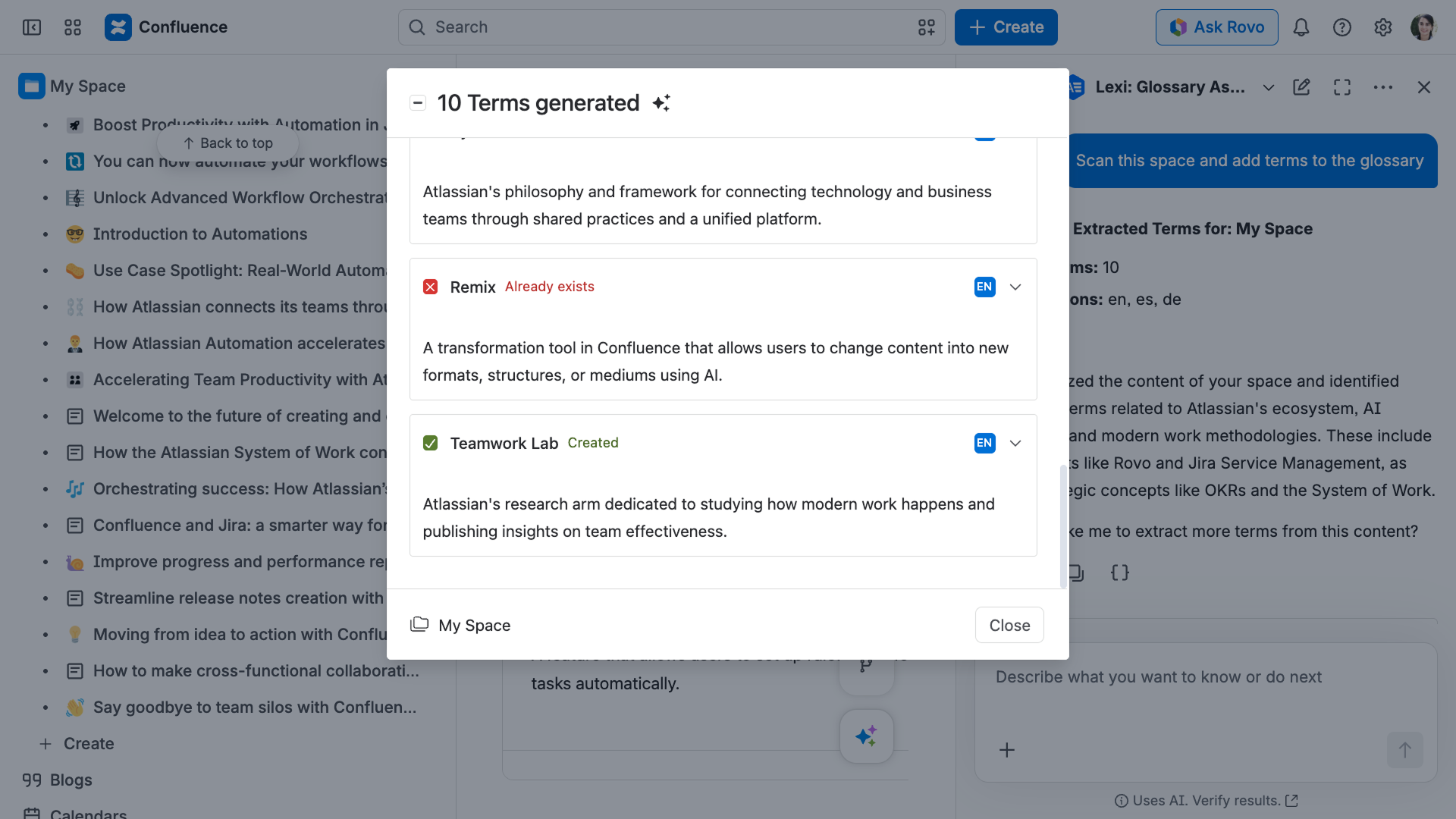
Lexi is designed to turn existing Confluence content into a well-defined glossary. Here is what it handles:
- Scan content for terms: Lexi can analyze an entire Confluence space, a page, a blog post, or uploaded attachments such as PDFs or documents, to identify key terms.
- Identify complex terminology: Lexi looks for technical jargon, acronyms, domain-specific words, and project-specific concepts that may need clarification.
- Provide definitions: For every term it finds, Lexi generates a clear definition based on the context of your content.
- Multilingual support: If your glossary supports multiple languages, Lexi can automatically translate the terms and their definitions into the available languages.
- Streamlined review: Once terms are extracted, Lexi displays them in the Manage terms modal, where you can review, edit, and choose exactly which terms to add to your space glossary.

Prompts
Lexi responds to natural-language requests, so you don't need exact phrasing. Each prompt identifies the content to analyze and, optionally, the space where the resulting terms are saved.
You can refer to a space by its name, link, or key, and refer to a page or blog post by its name, link, or ID. If you don't specify a target space, terms are saved to the space you are currently working in.
| Prompt | Result |
|---|---|
| Scan this space and add terms to the glossary | Analyzes the current space and saves terms to it |
| Scan the space <name> and add terms to the glossary | Analyzes the named space and saves terms to it |
| Scan the space <name> and add to the space <name> | Analyzes one space and saves terms to another space |
| Find terms in this page | Analyzes the current page and adds terms to the current space |
| Scan the page <name> | Analyzes the named page |
| Scan this page and add to the space <name> | Analyzes the current page and saves terms to the named space |
| Scan this page and create terms without translations | Analyzes the current page and creates terms in the default language only |
| Scan this blog | Analyzes the current blog post |
| Scan the blog <name> | Analyzes the named blog post |
| Extract terms from this file | Analyzes an attached file, such as a CSV or PDF |
The global glossary is not tied to a specific space, so when talking to Lexi, include the space you want to scan in your prompt.

Use space names, space IDs, page IDs, or links for more accurate results.
Manage term creation
After a scan, your extracted terms open in the Manage terms modal. When you click on Create, Lexi creates the terms one at a time, and the modal will present clear feedback for each term:
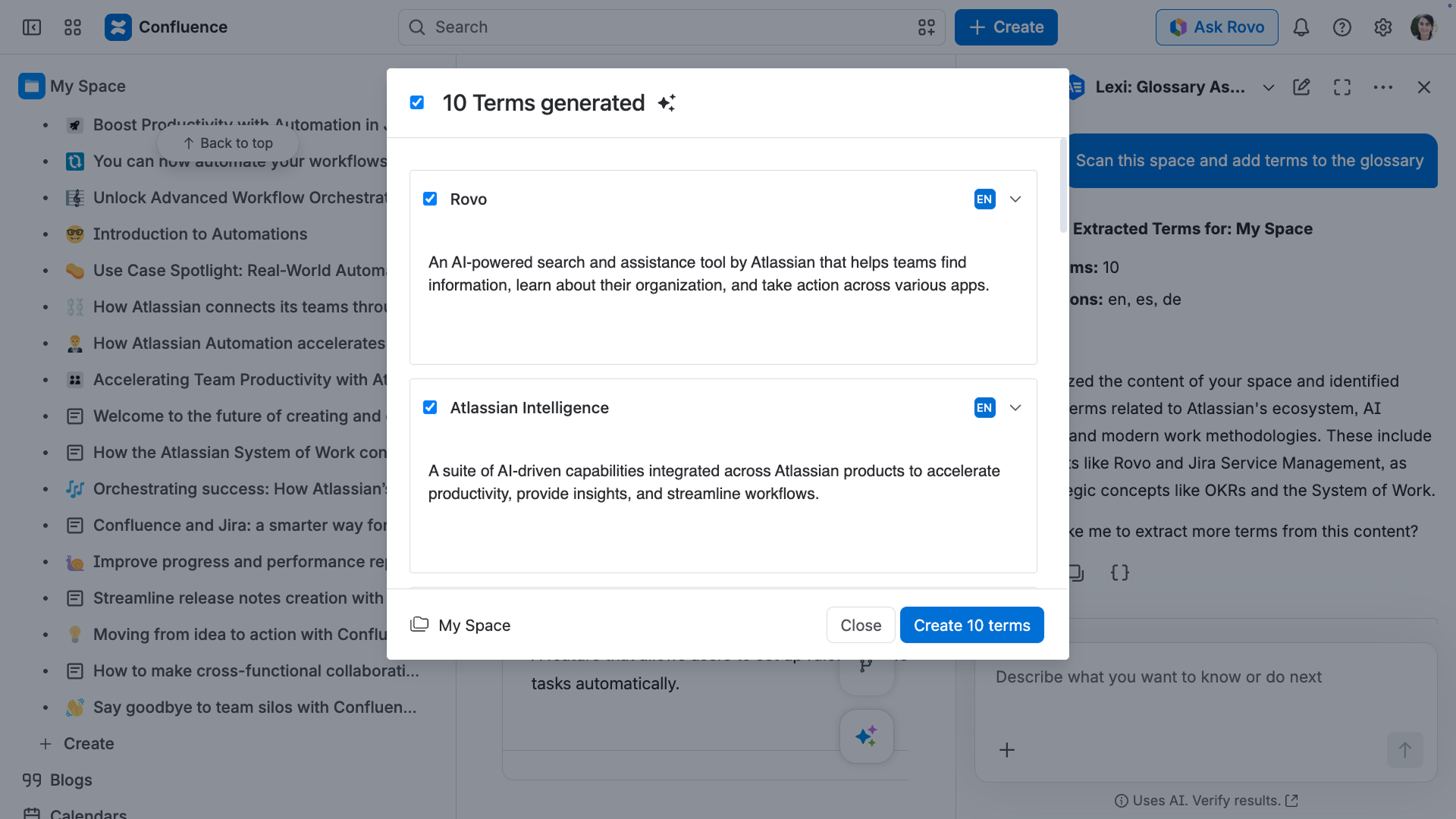
- Visual indicators: Each term turns green when it is successfully created, or red with an error message if creation fails.
- Active term: The term currently being created displays a colorful border, and its checkbox is replaced with a spinner.
- Autoscroll: You can disable it to review created terms while Lexi continues creating the rest.
- Cancel: You can cancel the term creation process, but Lexi cannot delete or roll back the terms that have already been created.
Always review before saving
Lexi generates definitions from context, so a quick review in the Manage terms modal keeps your glossary accurate and consistent.
Before creating your terms, you can double-click a term's title or definition to edit the text and adjust its formatting.
Rovo agents do not support guest users.