Learning Path configuration
Thumbnail
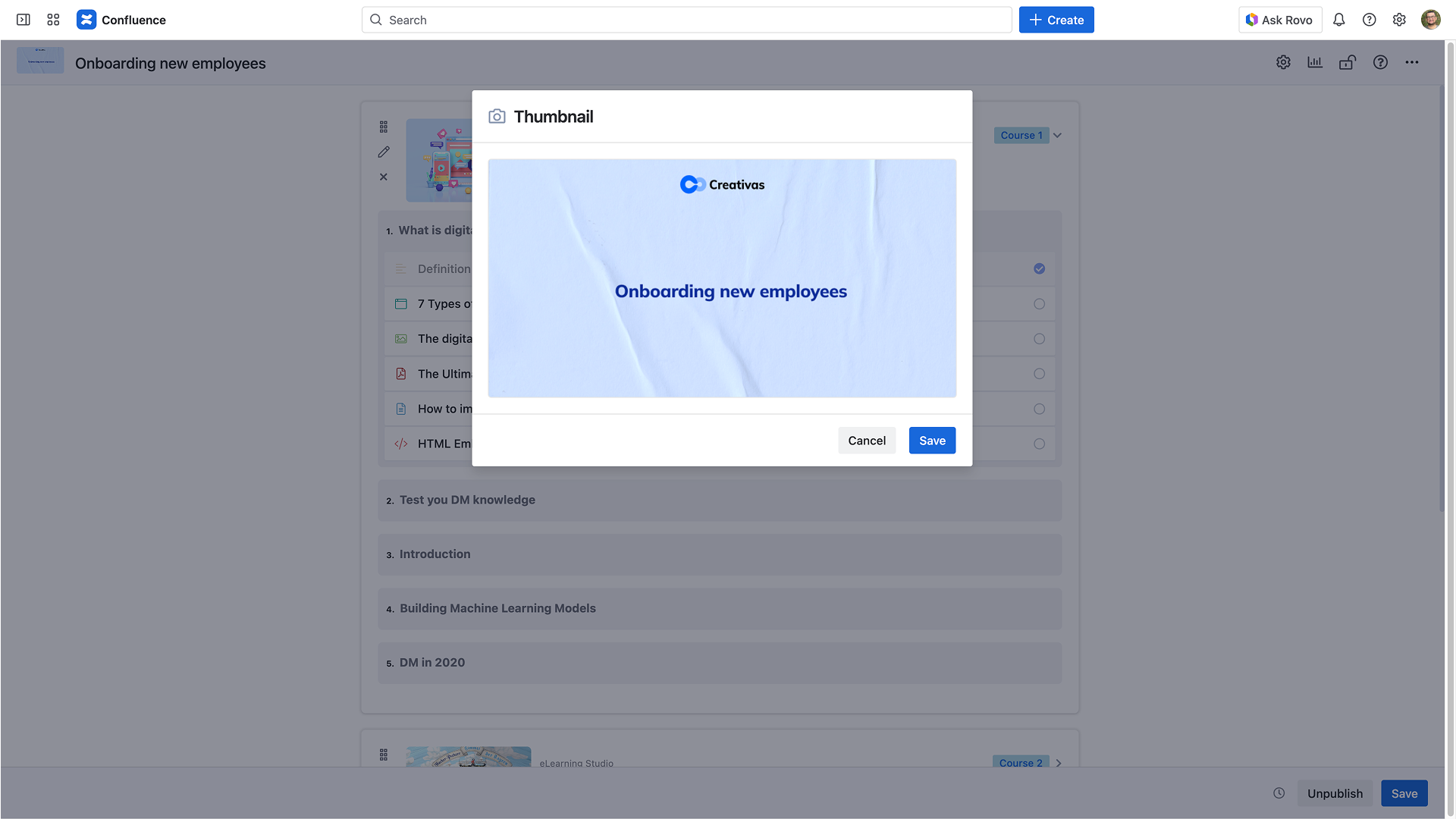
Upload an image as a thumbnail. This image is used in the catalog. Using a rectangular image is preferred for better rendering.

New thumbnail uploads are limited to 2MB.
Configuration
Catalog
About this learning path
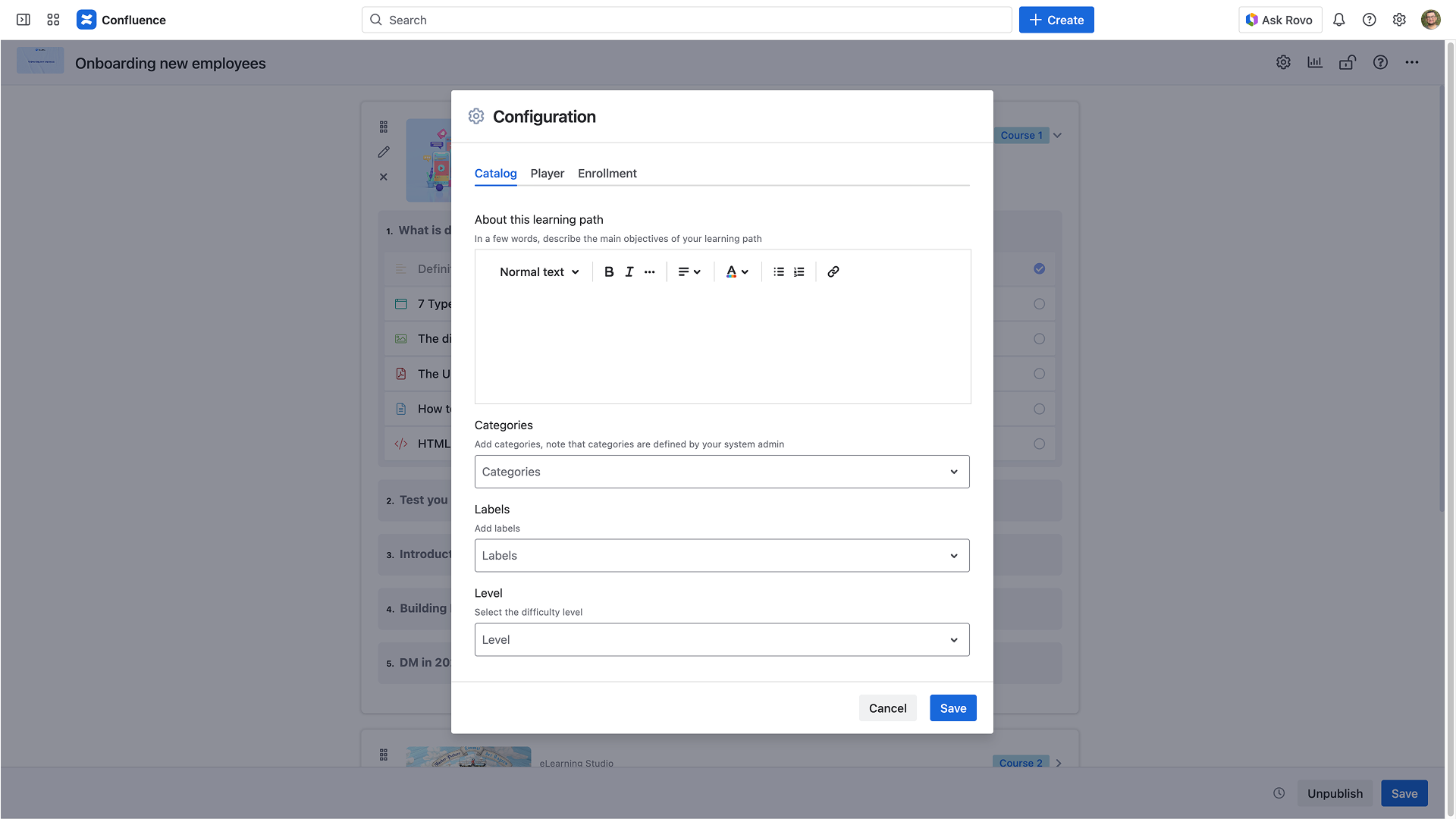
Fill in a quick description of the learning path as shown in the screenshot. This description will be directly visible on the card, in the catalog.

The maximum length of the description is 1000 characters.
Categories
Select one or more categories. Categories are used in the catalog to filter the learning paths.
A Smart Courses administrator can manage/create categories from Smart Courses Configuration.
Labels
Select one or more labels; the labels are used in the catalog to filter learning paths. You can also use these labels in the Confluence search to find them. Check this link for more details about Confluence labels creation.
Smart Courses uses the native Confluence labels. If you create a new label, it will be available for pages and other content types in Confluence.
Level
Choose the difficulty level of a learning path:
- N/A
- Introductory
- Intermediate
- Advanced
These levels are also used in the catalog to filter learning paths.
Player
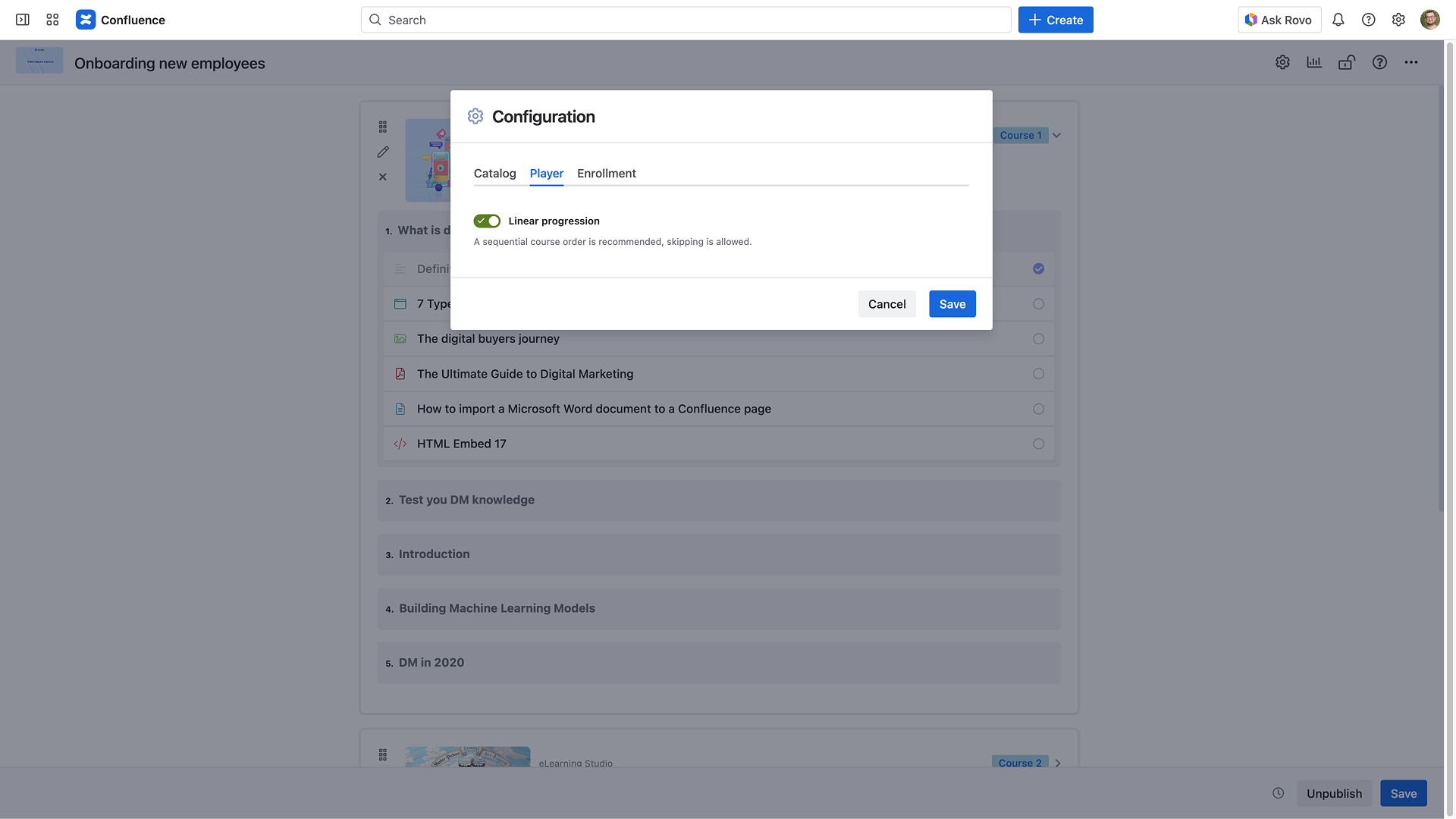
- Linear progression: A sequential course order is recommended, skipping is allowed.
Enrollment
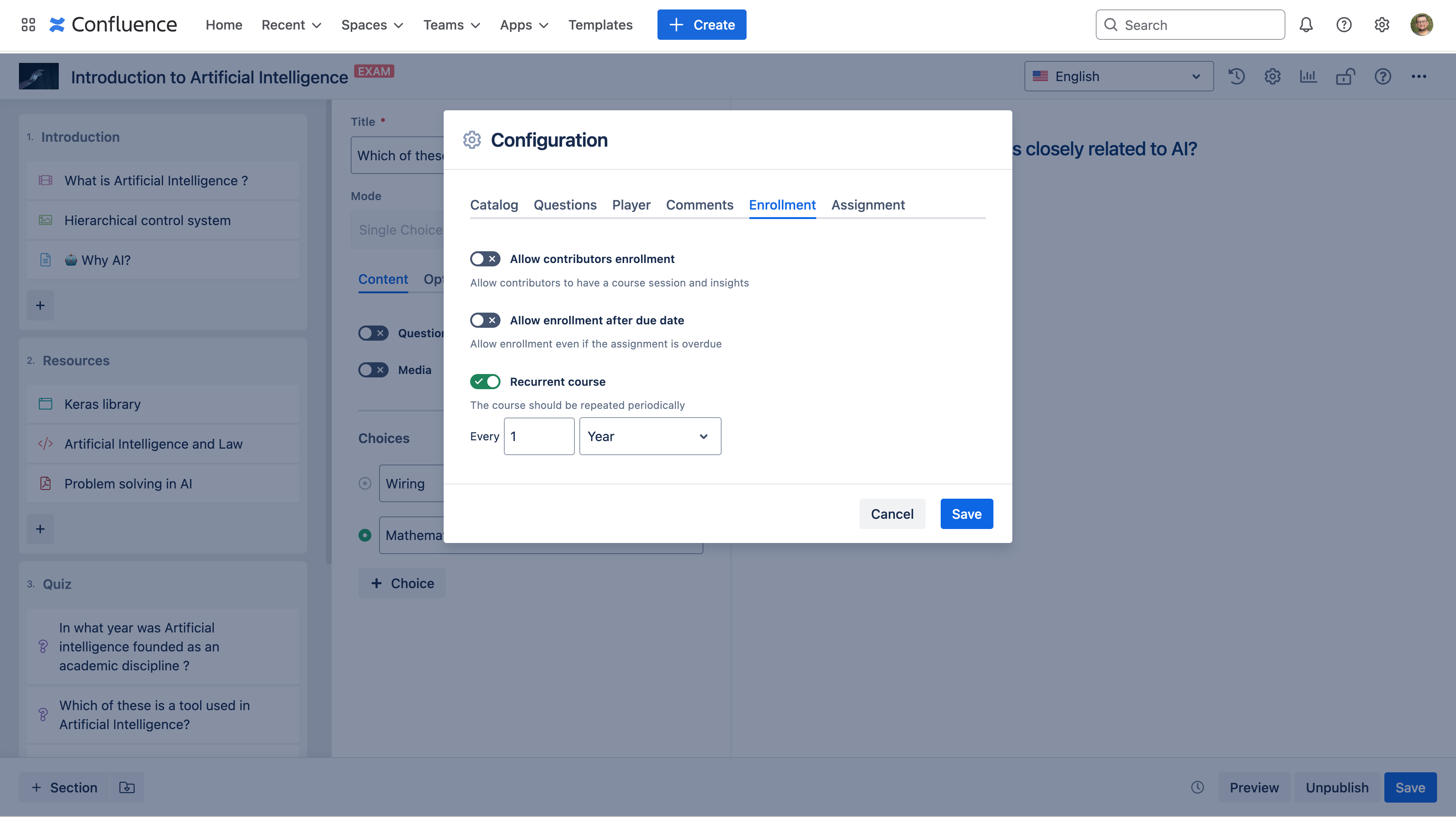
- Allow contributors enrollment: Contributors will be allowed to access the learning path player, and their insights will be tracked similarly to other learners.
Restrictions
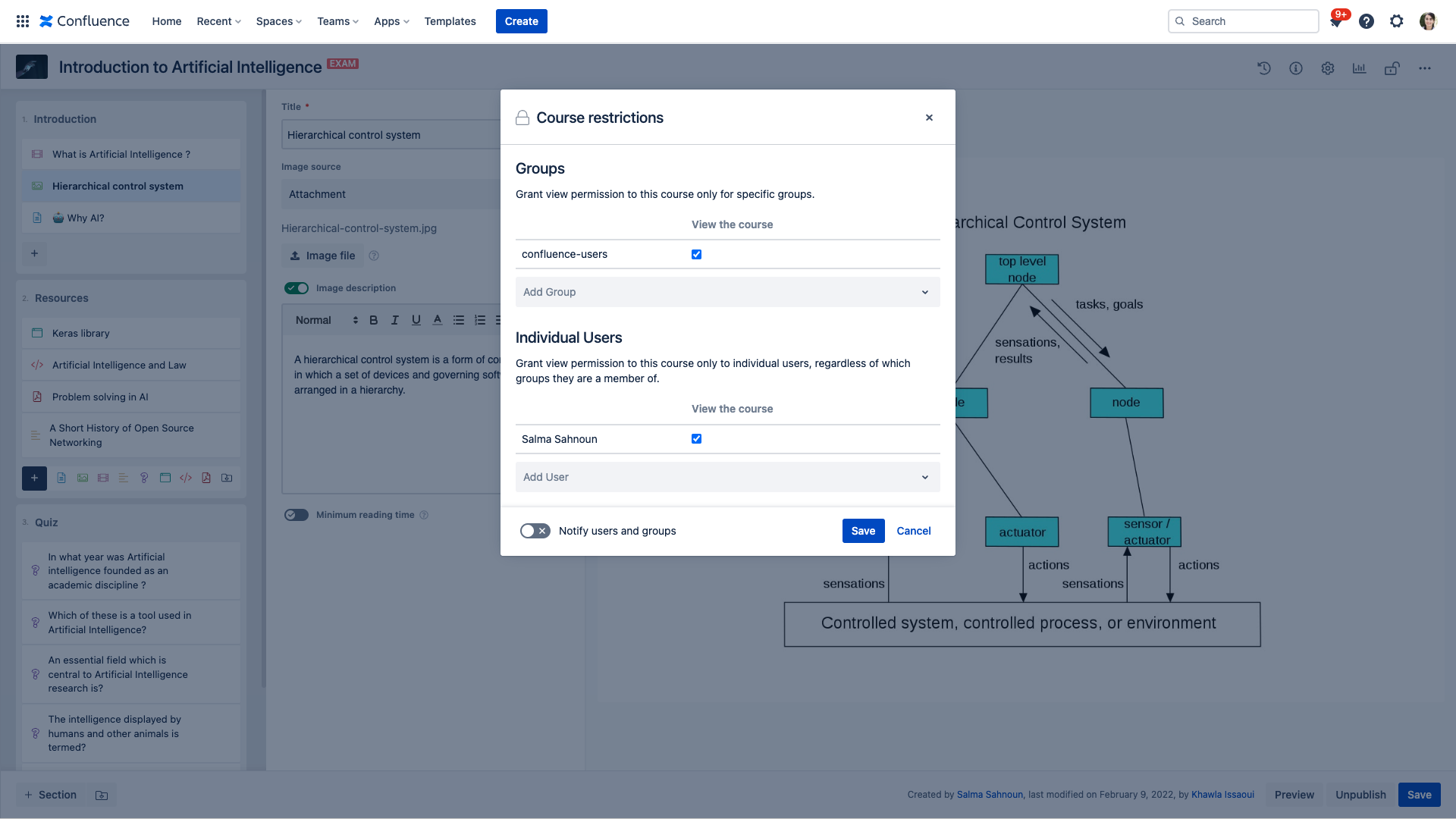
This option allows defining learning path restrictions. By default, it has the same accessibility rules as the space in which it was created. An administrator can customize restriction rules.
These restrictions are exclusive and not inclusive; only the mentioned groups and users will see the learning path in the catalog and attend it.
You can add up to 100 individual users and 100 groups to the restricted list.
Actions
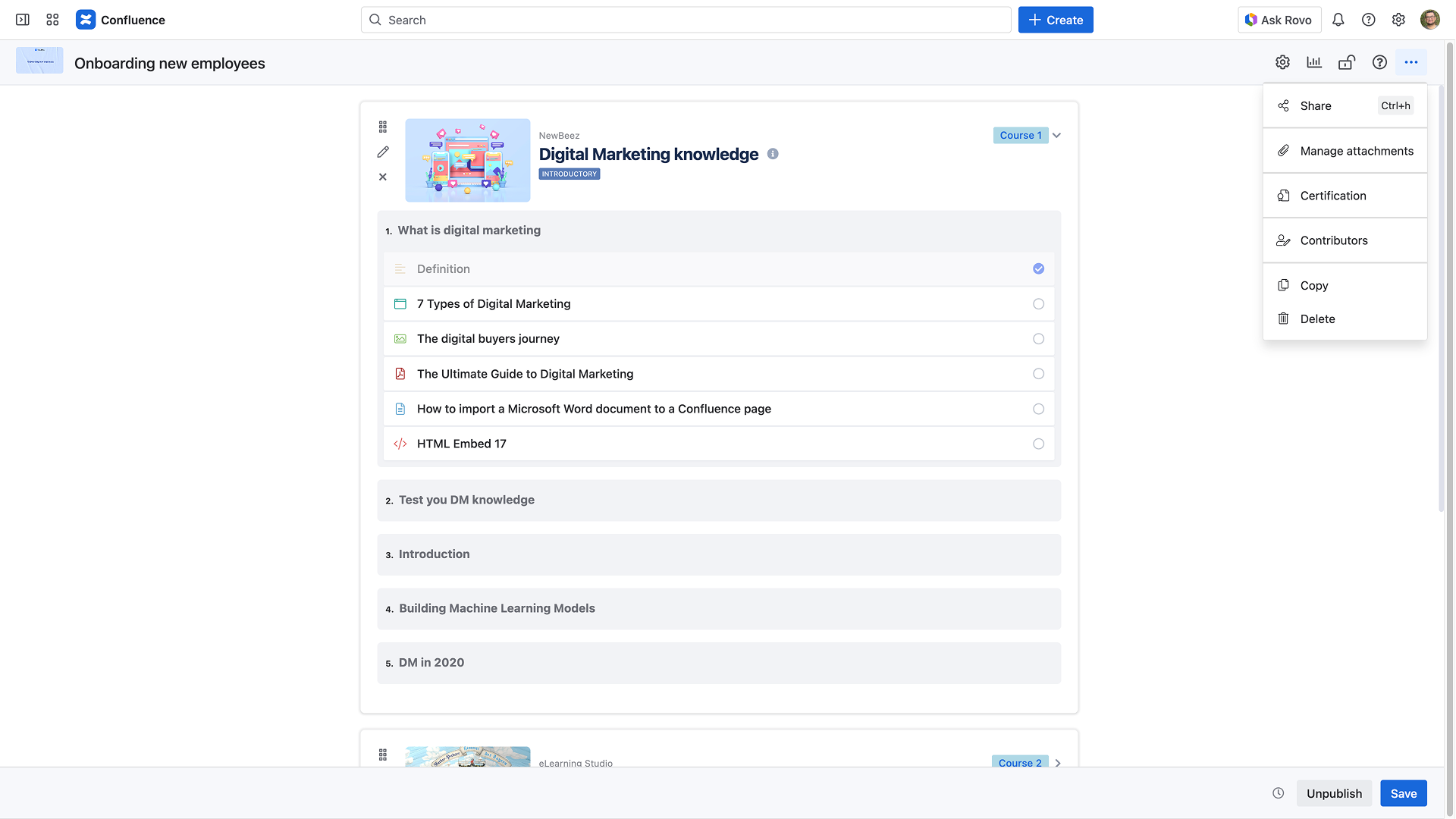
Share
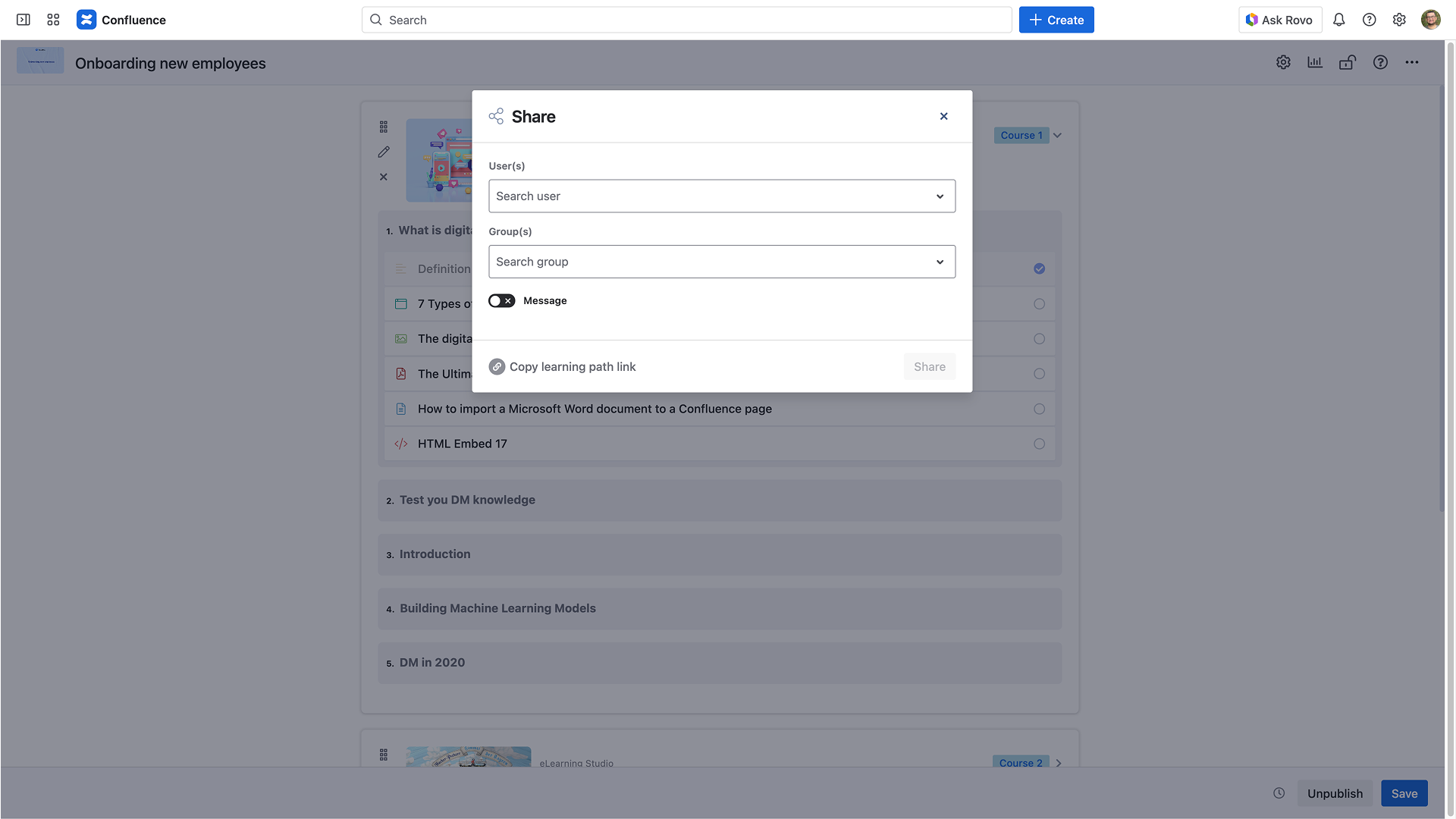
Select a user or a group of users to invite them to attend the learning path.
Assign
New assignment
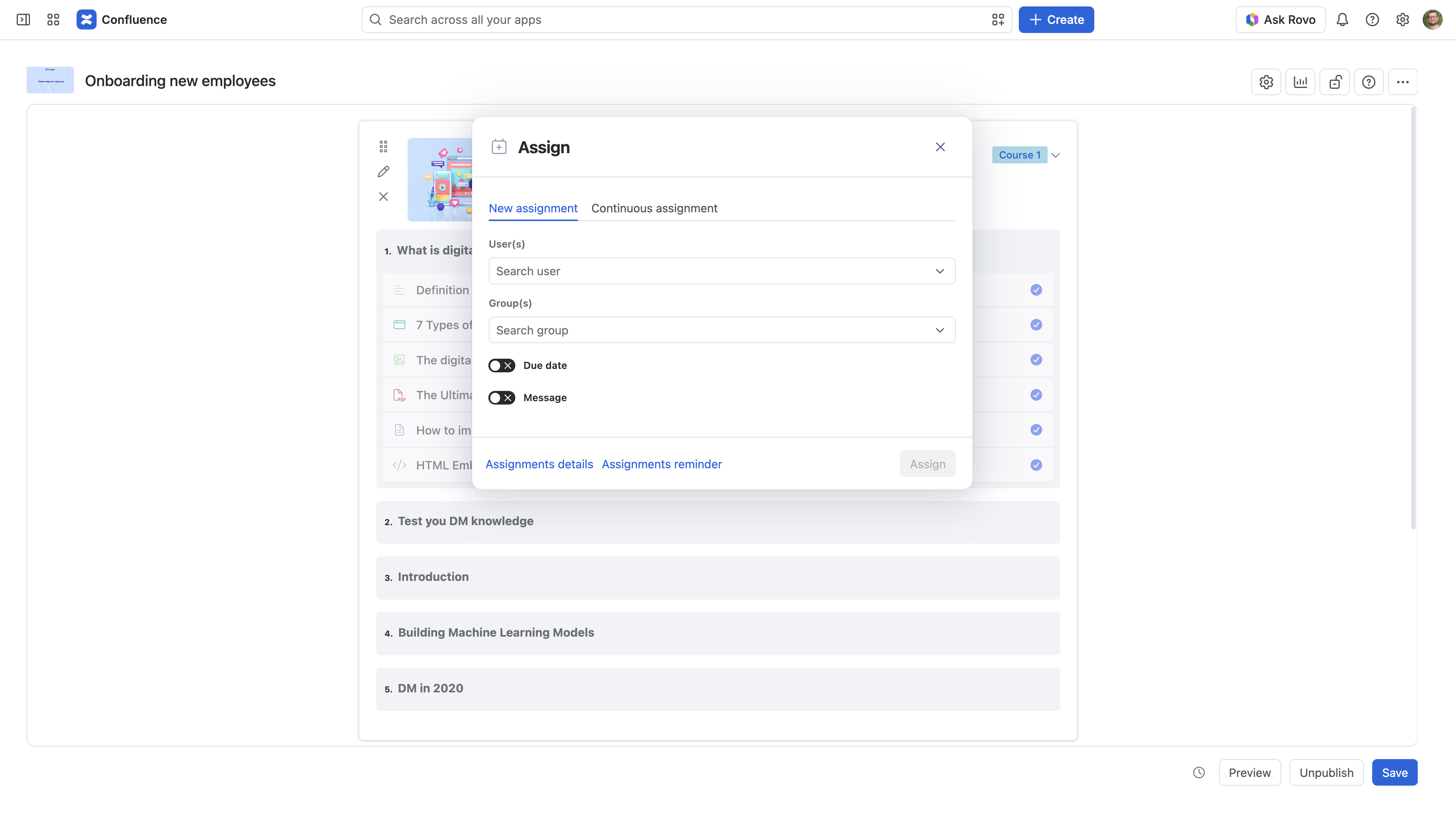
Assigned users or groups need to complete the learning path.
Learning path assignment involves:
- Assigned users or groups of users will receive assignment notifications
- A special Assigned tag will be added to the user session in the course insights

If a Due date is enabled :
- Assigned users and/or groups will have to complete the learning path before this date. If not completed, a reminder is sent, for example, once per day for the five days preceding the due date
- If an assigned learning path is overdue, users are no longer able to view the learning path unless an administrator extends the assignment
Continuous assignment
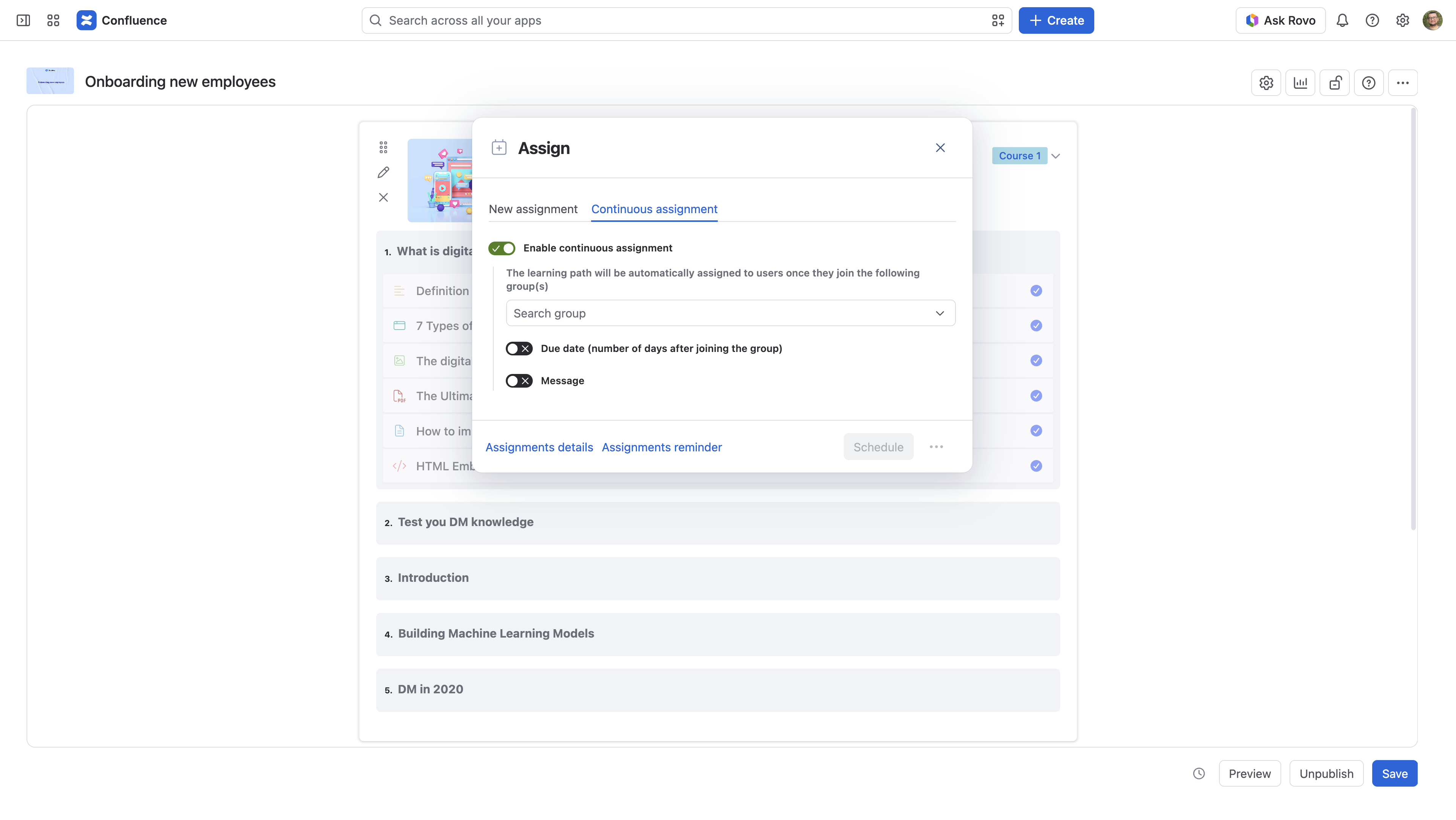
You can schedule an assignment based on groups.
The learning path will be automatically assigned to users once they join the group.
The scheduled assignment involves:
- Groups: groups to whom the learning path is assigned
- Due date: learning path creator can indicate the due date: the number of days after the new user joins the group
- Message: customized message will be sent to the learners along with the notification
When scheduling a continuous assignment, you can enable these options:
- Update existing assignments: Current group members' assignments will be updated
- Only notify future assignments: Current group members will be assigned but will not be notified. Future group members will be assigned and notified.
Current group members who are not assigned to the learning path will be assigned immediately.
Manage Attachments
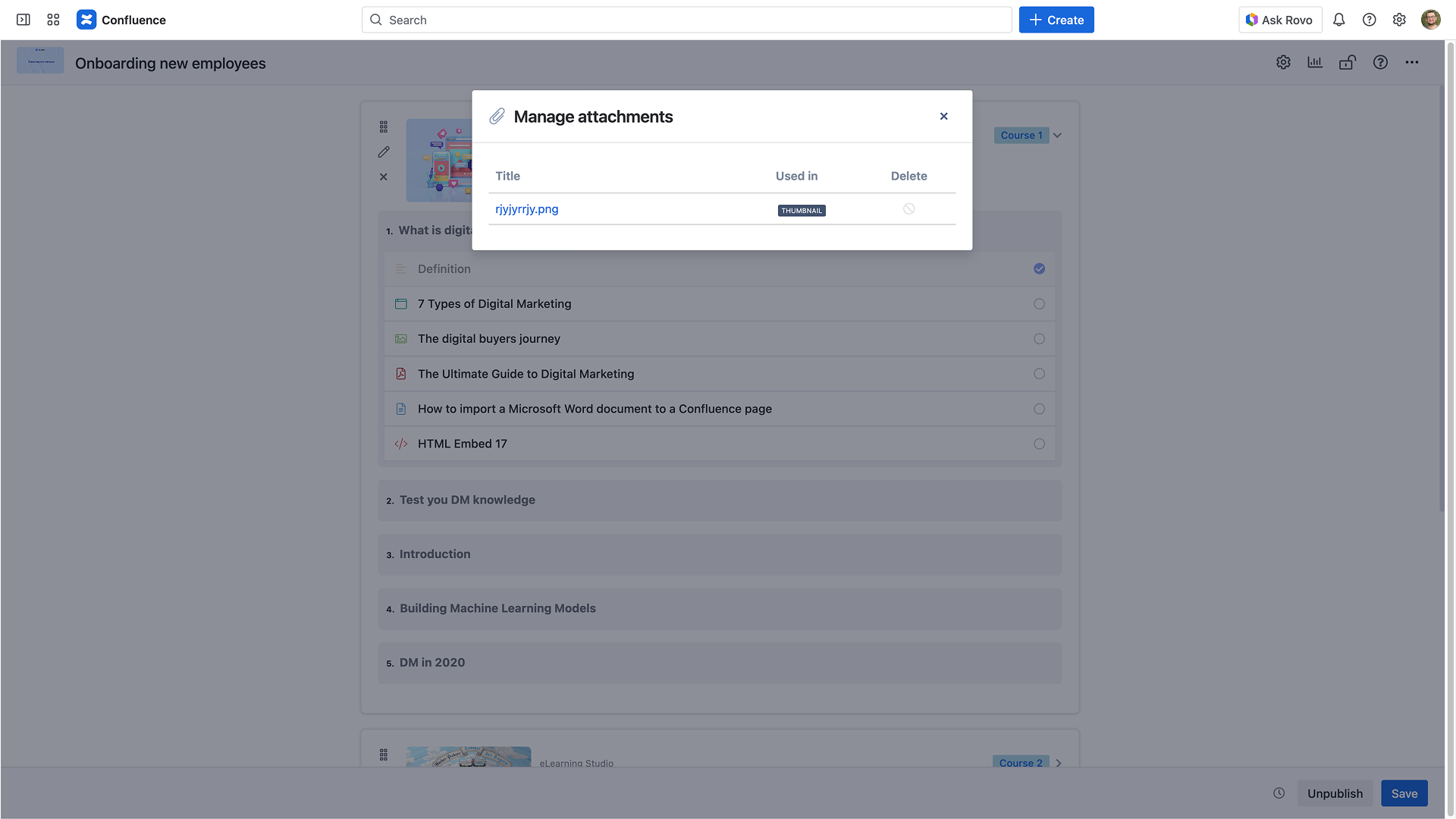
When deleting a component, the attachment is not removed from Smart Courses. Attachments can be managed in different ways.
The table has three columns:
- Title: Attachment label stored in Confluence
- Used in: List of components where the Attachment is used
- Delete: Allows you to delete the attachment if it is not used in any component
When adding attachments to the learning path, if an existing attachment with the same name is uploaded, Smart Courses creates a copy and adds a unique suffix "-cvsXXXXXX" to the file's name to avoid overwriting used attachments in other components.
Certification
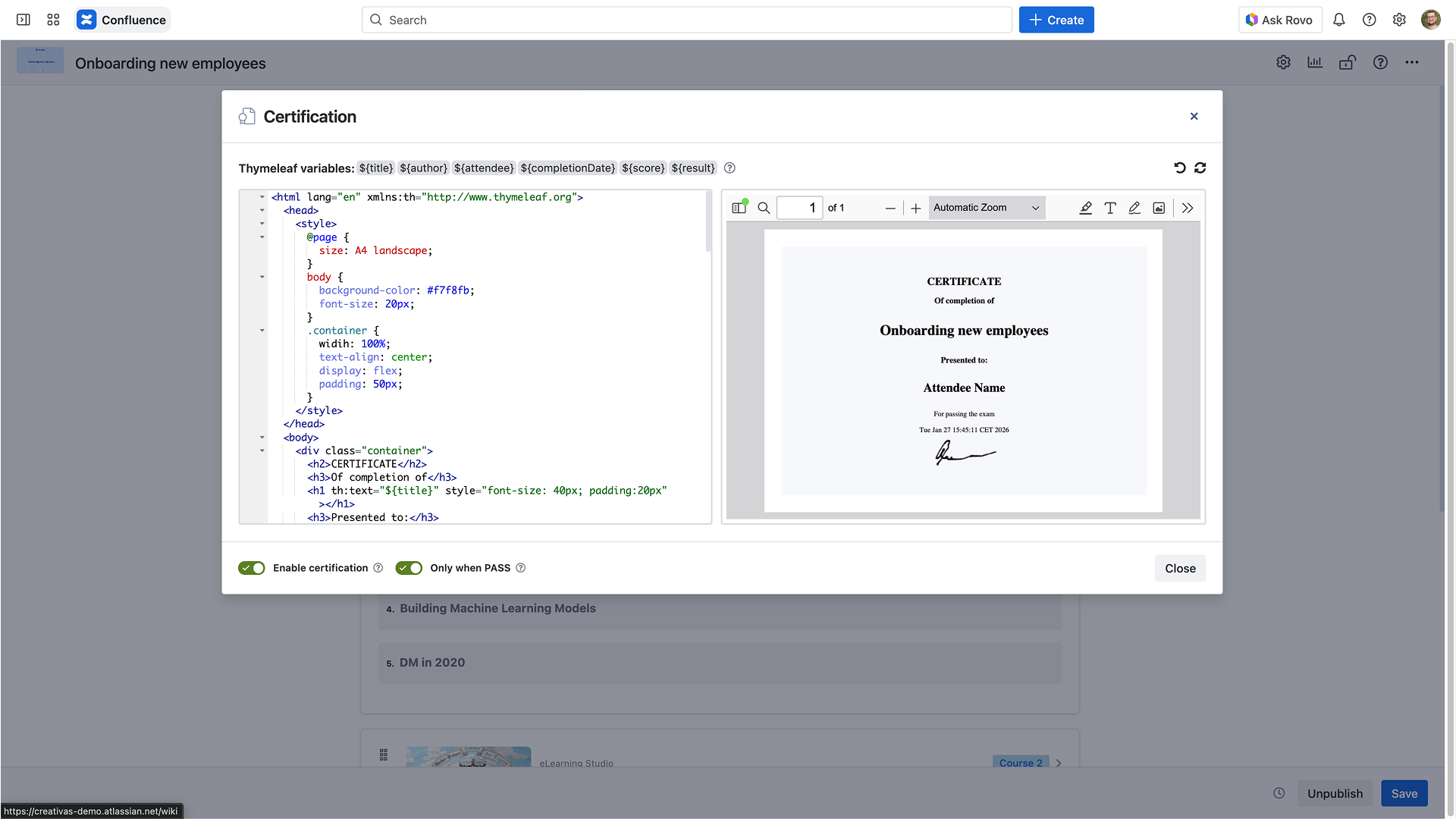
An editor can enable certificate generation once the learners finish their courses.
You can easily customize your certificate using a combination of HTML and Thymeleaf code while having a live preview of the changes you made.
Here is the list of the pre-defined variables:
Learning path title
Author name
learners' name
Result
Certificate template actions:
- Restore the default global template or the default space template if enabled.
- Refresh certificate preview.
Certification options:
Enable Certification: Learners will be provided with a download link for a PDF version of the certificate once:
- All selected regular courses are completed, with a 100% course progress
- All exams are finished: Learners need to click the finish button
Only when PASS: Deliver certificate only for successful learners who completed all regular courses and passed all exams
Only following fonts are supported:
Arial
Comic Sans MS
Courier New
Garamond
Georgia
Impact
Tahoma
Times New Roman / Times
Trebuchet MS
Verdana
Images should be encoded in base64 format and directly inserted in the HTML code.
The certificate template colors do not support opacity variables.
Contributors
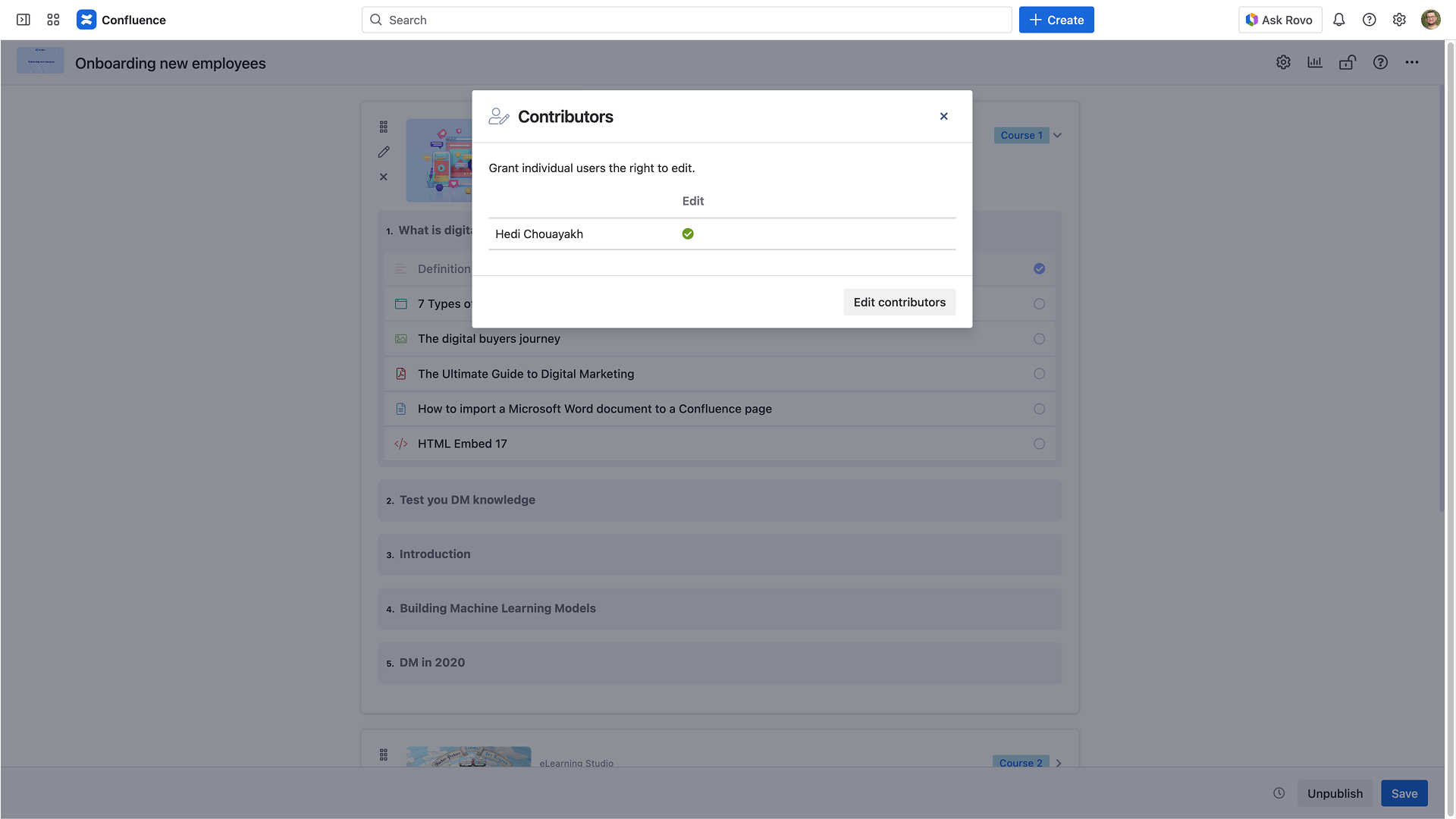
An admin can select users to grant them the right to edit the learning path (contributors).
Smart Courses distinguishes the administrator from contributors. An administrator is either the creator, a space admin, or a Confluence admin.
Contributors cannot:
- Edit contributors list
- Manage advanced settings related to linear progression and enrollment
- Manage restrictions
- Copy or delete a learning path
You can add up to 100 individual users to the contributors list.
Copy
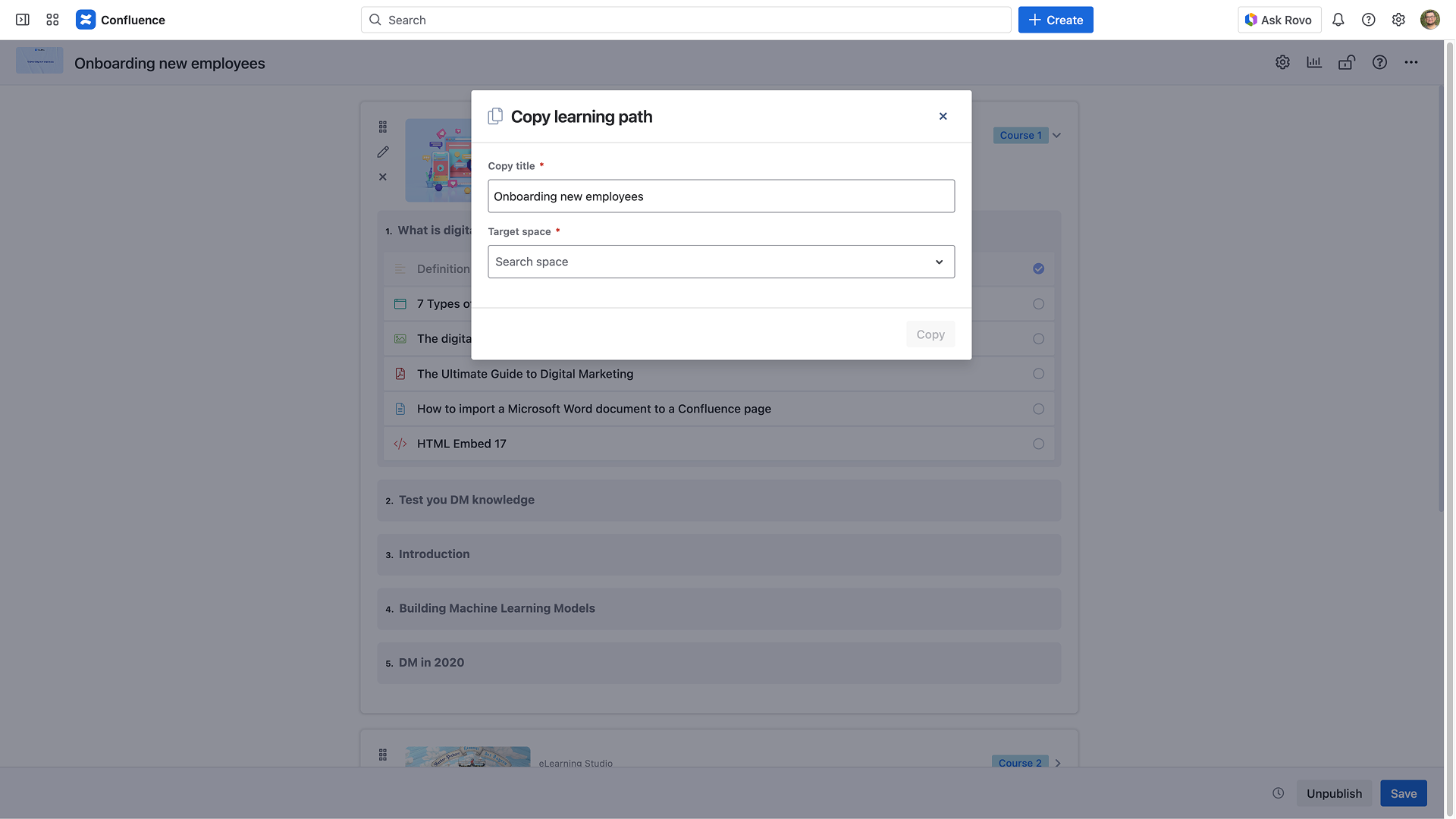
Copy a learning path to another space. The visibility rights of the target space will apply to the learning path copy.
When you copy a learning path, the following elements are not copied:
- Restrictions
- Contributors
Note that it is only possible to copy a learning path to another space if the editor has creation rights.
Delete
Allows you to delete the learning path.
Concurrent editing prevention
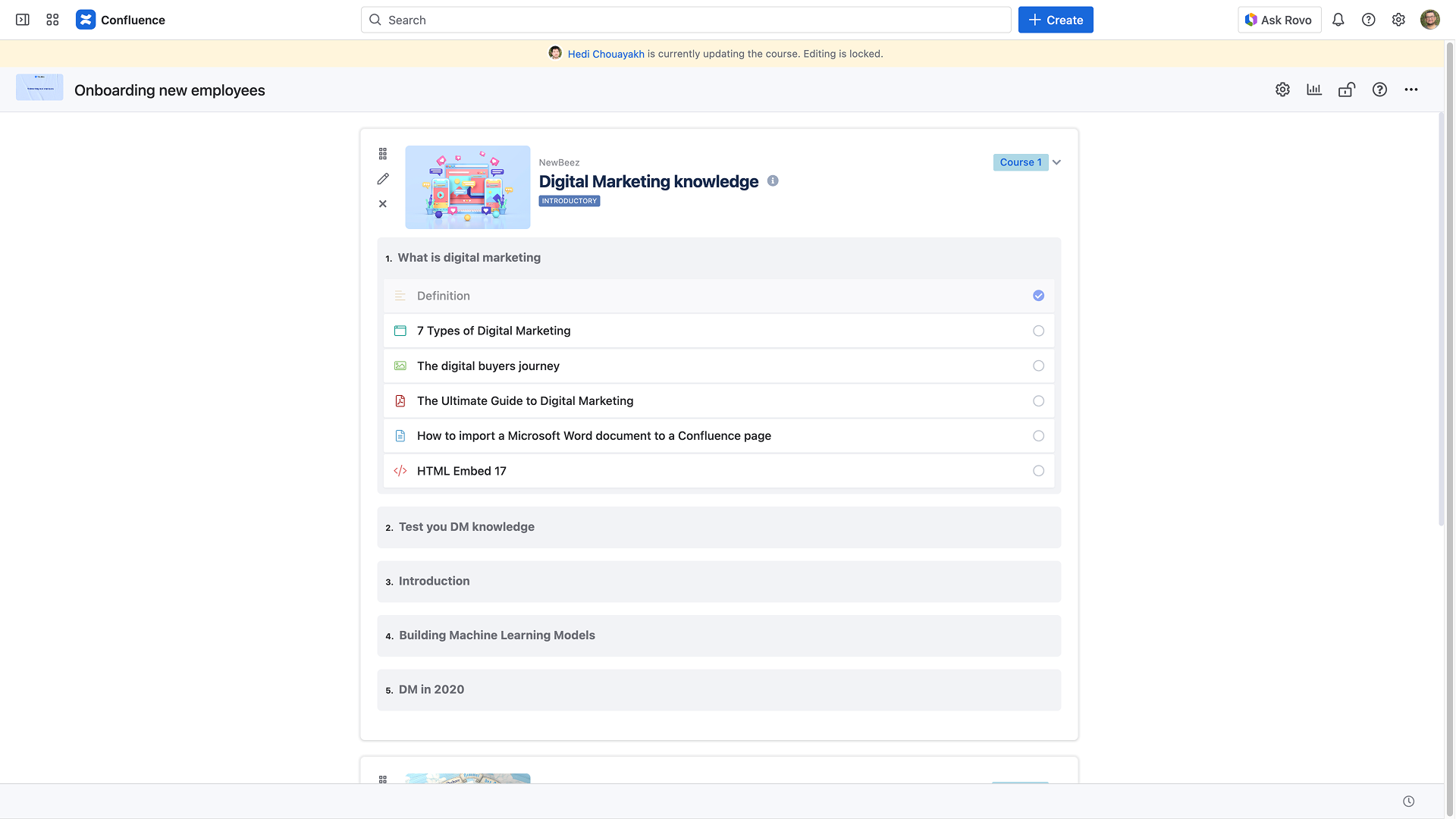
When one contributor is editing the learning path, all other contributors cannot edit or configure it simultaneously. A yellow bar on the top will appear, informing you that the learning path is currently locked for editing. This is a precaution to prevent conflicts and ensure changes are managed efficiently. Once the current contributor finishes editing, other contributors will need to refresh to start editing.
Check this FAQ link for more details.