How can I automatically notify the course creator when the expiration date arrives?
This automation can be configured directly from the board's Automation section. Follow the steps below to complete the setup and ensure the automation runs as expected:
Open the board that contains your courses
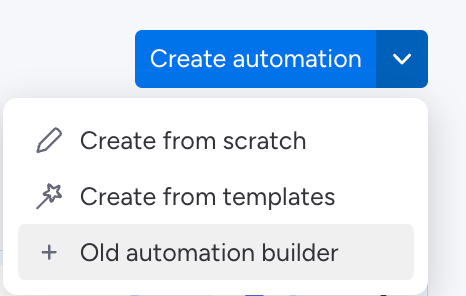
Open the Automations dashboard and click on Old automation builder
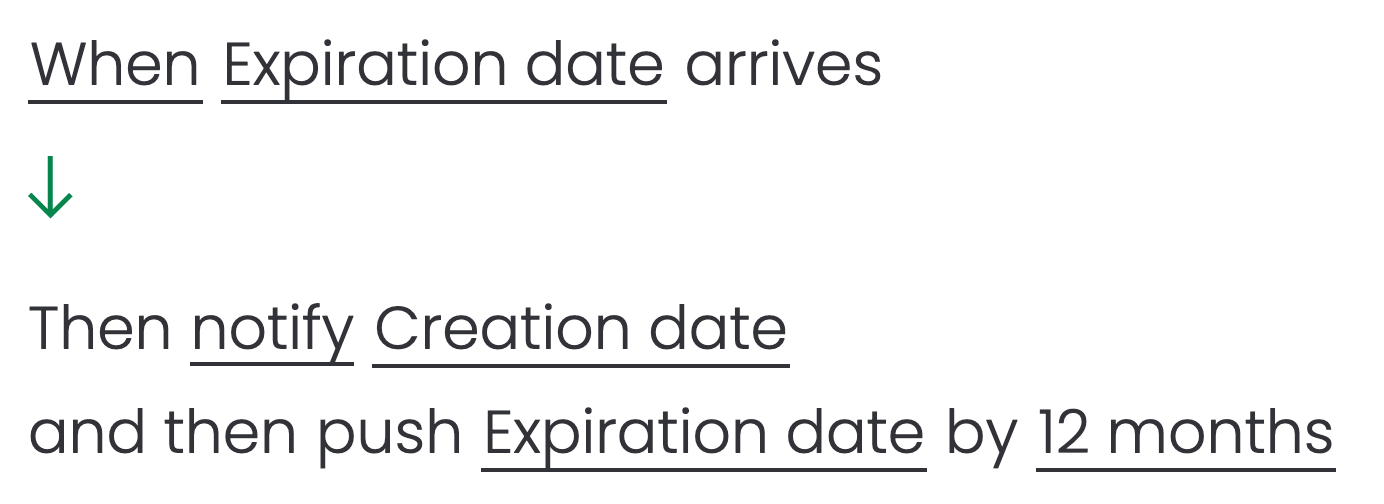
Choose the trigger "date arrives"
Click on When to customize the notification time
Click ondateto select theExpiration datecolumn
Add the action "notify"
Click onnotifyto customize the notification message with fields from your board
Click on someone, select People (column) and then Creation date
Add the action "push date"
Click ondateto select theExpiration datecolumn
Click on some time to set a new expiration date
Create the automation
Example:
If learners are also getting notified and the date is pushed within another automation, the expiration date should be pushed only by one automation.