SQL table

Create SQL table
To create an SQL table from Smart Tables data, open the + View menu and click on SQL table. SQL tables are created and managed exclusively from the Confluence page viewer.
SQL tables allow you to reshape and summarize data by writing SQL queries. Conditions, groupings, sorting, and aggregate functions let you narrow results down to exactly the records that matter, whether that means counting occurrences, totaling values, or filtering out what's irrelevant. Because queries run right on your Smart Tables data, you can quickly build a custom view tailored to a specific question, turning raw rows into a clear, actionable answer.
The result is displayed as its own table on the Confluence page and stays in sync with the Smart Table it draws from.
If you're not comfortable writing SQL, AI Mode lets you describe what you need in plain language and generates the query for you. AI Mode is available only when a Confluence administrator has enabled the AI Engine.
Settings
Options
Style: Custom height
Labels: SQL table title
Delete
From the Settings menu, you can delete the SQL table.
Additional settings are available under the Global View.
Edit mode
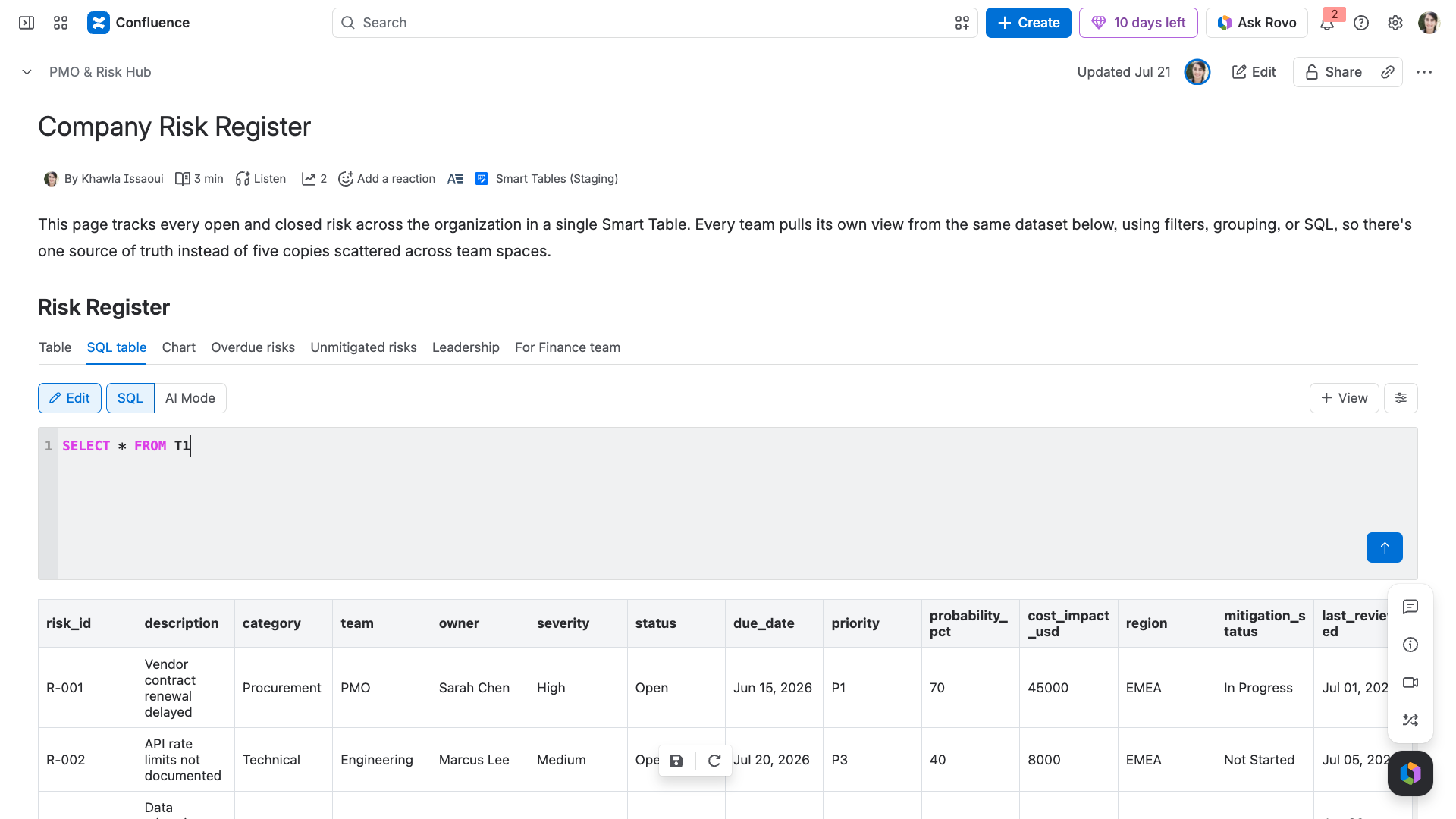
The edit mode is enabled by default when a new SQL table is created. To see the SQL table as page viewers do, toggle off edit mode using the edit button in the top-left corner.
The toolbar in the top-left corner lets you switch between two modes:
- SQL: Write standard SQL directly against your Smart Tables data.
- AI Mode: Describe the query you need in plain language and let the AI Engine generate it. The query is generated using Atlassian‑hosted LLMs powered by Anthropic's Haiku 4.5.
To run a query, add it to the SQL editor and click the Run Query button or click Enter. The result appears below the editor. Reference the source table as T1, and wrap any column name that contains spaces or special characters in backticks:
SELECT SUM(`Daily Budget ($)`) FROM T1AI Mode
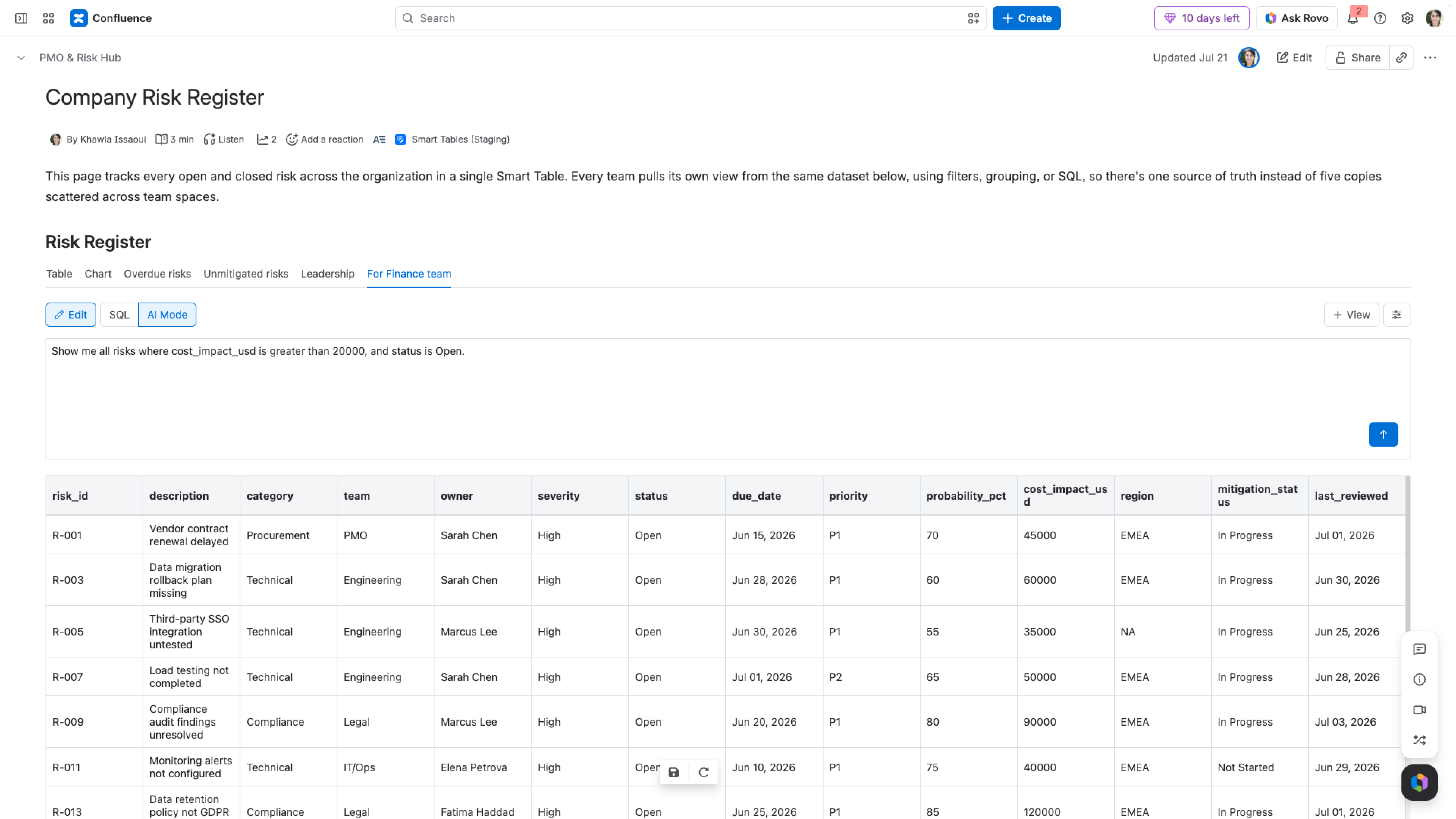
When the AI Engine is enabled, AI Mode lets you generate a query without writing SQL yourself. It's useful for getting started quickly, for one-off questions, or as a first draft to be refined afterward.
To generate a query with AI:
- Click AI Mode in the toolbar
- In the prompt box, describe the result you want in plain language, for example "Show total sales for January"
- Click the Run Query button and the prompt will be executed
- The SQL editor will switch automatically and you will be able to review the produced table and the generated query
Isolated Cloud only: AI Mode is not supported by Smart Tables for Isolated Cloud.
Examples
The following examples illustrate common questions you can answer with an SQL table. They query the source table as T1; adjust the column names and conditions to match your own data.
Total a numeric column across every row:
SELECT SUM(`Daily Budget ($)`) FROM T1Average a value for each group:
SELECT
  Status,
  AVG(Budget) AS AverageBudget
FROM T1
GROUP BY Status Count how many rows fall into each category, most frequent first:
SELECT Status, COUNT(*) AS Total
FROM T1
GROUP BY Status
ORDER BY Total DESCKeep only the groups that exceed a threshold:
SELECT Owner, SUM(Budget) AS TotalBudget
FROM T1
WHERE Status = 'Booked'
GROUP BY Owner
HAVING SUM(Budget) > 1000Return different values based on a condition:
SELECT
  Task,
  CASE
    WHEN Priority = 'High' THEN 'Escalate'
    ELSE 'Monitor'
  END AS Action
FROM T1Supported SQL
The following table lists all the SQL keywords and functions covered by SQL tables.
| Category | Description | Clauses / Functions |
|---|---|---|
| Clauses | Define what a query pulls and how the results are arranged | SELECT, FROM, WHERE, GROUP BY, HAVING, ORDER BY, LIMIT, OFFSET, TOP |
| Logical and comparison operators | Used inside WHERE or HAVING conditions | AND, OR, NOT, IN, IS, LIKE, BETWEEN, ALL, ANY, EXISTS |
| Conditional expressions | Return different values based on conditions | CASE, WHEN, THEN, ELSE, END |
| Aggregate functions | Calculate a single value across a group of rows | COUNT, SUM, AVG, MIN, MAX |
| Modifiers | Change how results are named, sorted, or deduplicated | AS, ASC, DESC, DISTINCT |
