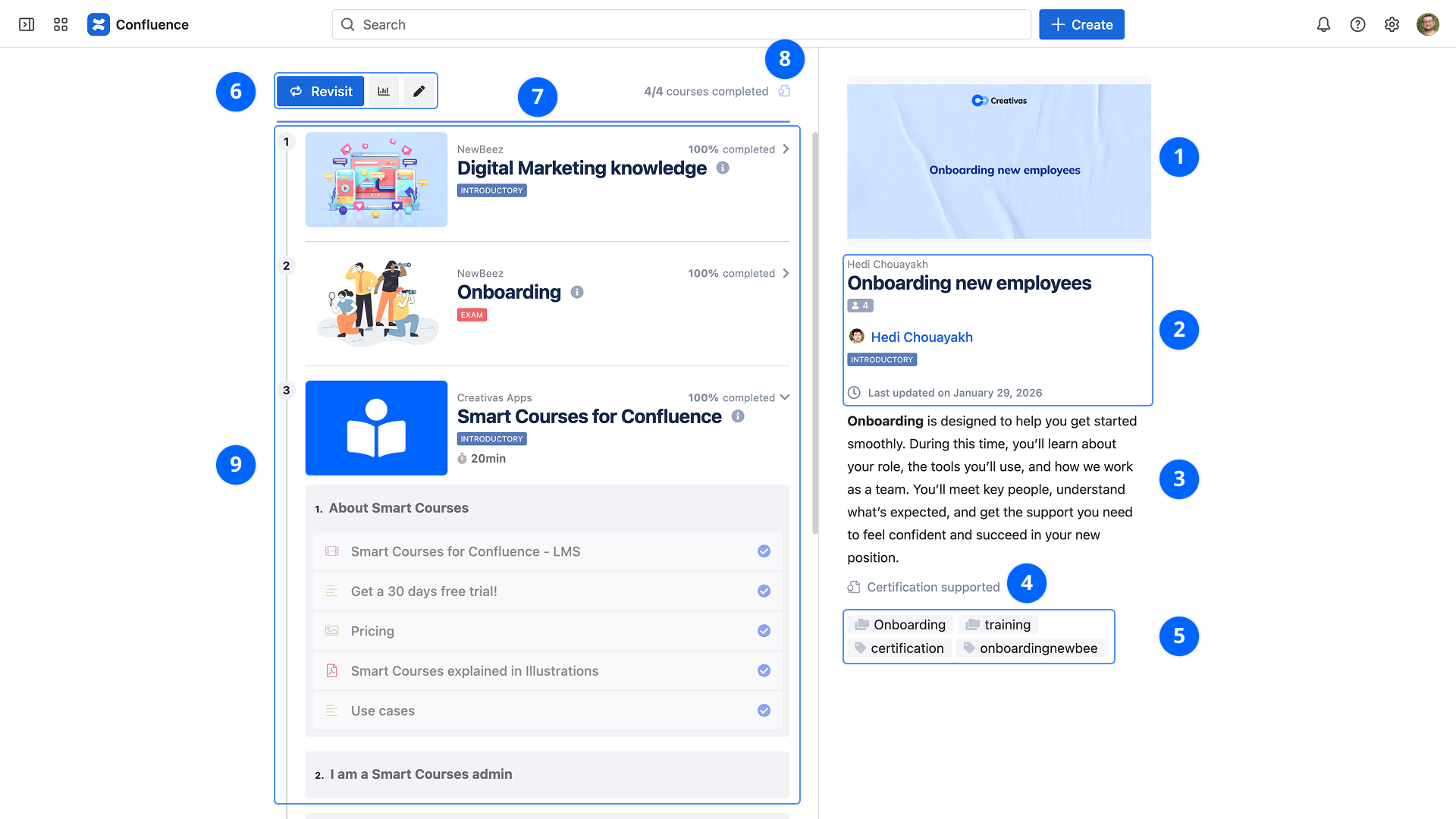
Before jumping into the learning path player, learners can access the landing page and get an overview of the learning path.

The landing page is opened when:

  • The learner has not accessed the learning path player yet
  • The learner clicks on the title or thumbnail

The landing page will display the following information:

  1. Thumbnail
  2. Quick information
    1. Space name: Displays the learning path's target space. You can click on the space name to open the space catalog.
    2. Title
    3. Number of learners: Number of users who have attended the learning path
    4. Creator's name
    5. Tags: Displays the following tags when applicable: Draft, Difficulty level
    6. Last updated date
  3. Learning path details: Displays the learning path description
  4. Certification supported: Displayed when certification is enabled

  5. Labels and Categories
  6. Actions:
    1. Open the learning path by clicking on the Start, Resume, Revisit or Preview buttons
    2. Edit
    3. Insights
  7. Progress bar: This bar displays the learner's path progress. For example, if the learner has already completed half of the courses, this bar will be half-filled.
  8. Certificate: Download the certificate
  9. Table of contents: Display the path's courses

For each course, requirements and additional information will be displayed before the course title.

Course creators or contributors can start, resume or revisit the course only when Allow contributor enrollment is enabled.